Loading...

Thank you for your message

It has been sent successfully. If you would prefer to book a meeting right away, choose your preferred time.

Successfully sent

Your e-mail has been successfully subscribed to the newsletter

Want to know more?
Let's meet up!

What will happen after completing the questionnaire?

  1. We will contact you with an offer of dates
  2. Together, let’s take a look at how Symfio can help you and how the app works
  3. Let’s take a look at your current financial management system
  4. We will agree on the terms of cooperation and possible customization to suit your needs
  5. We will guide you through the entire implementation process

By submitting you confirm that you are aware of the processing of personal data.

Adding a row

A plan contains only combinations with some movement in history. To plan a new item (e.g. a new revenue type), add a row.

1 min read Updated 15. 10. 2026
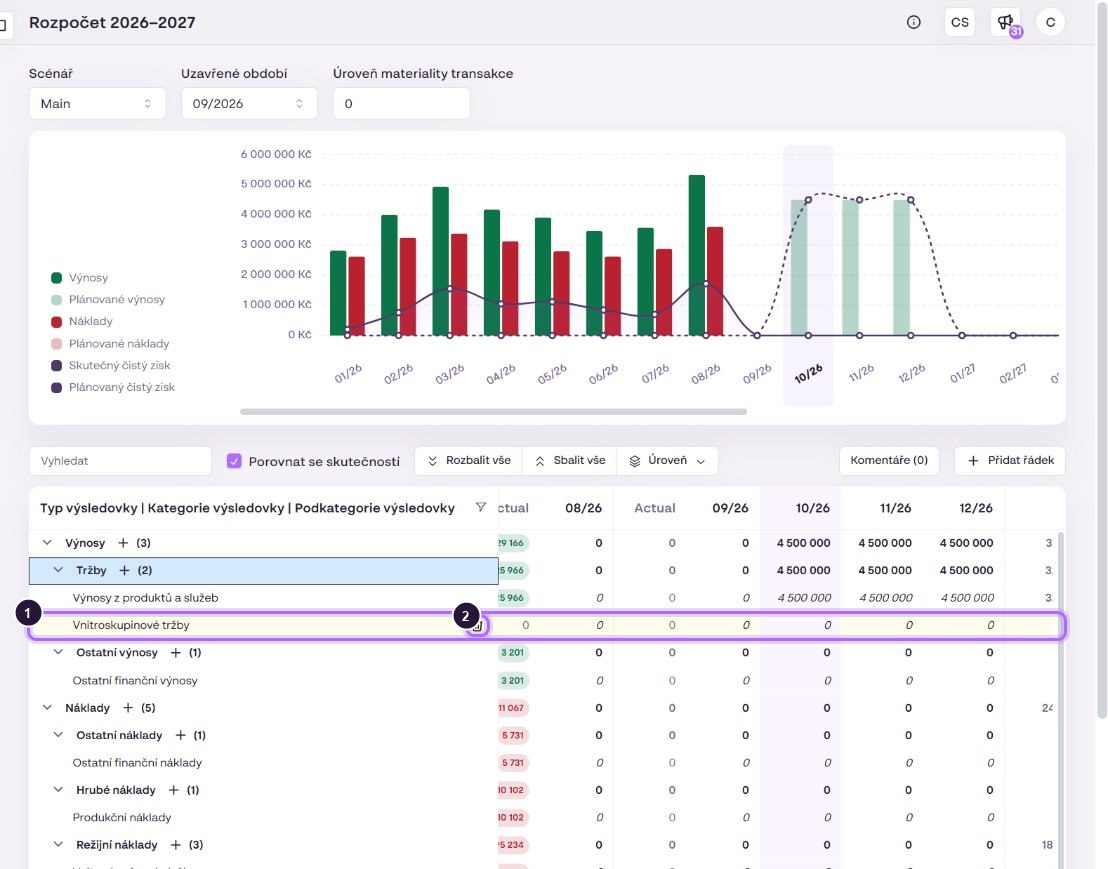
  1. Click + next to the parent row (values are pre-filled) or Add row in the toolbar.
  2. In the side panel choose values of all dimensions. Only existing code-list values are offered; new ones cannot be created here.
  3. Click Add row. The new row is highlighted and has a bin icon for removal.
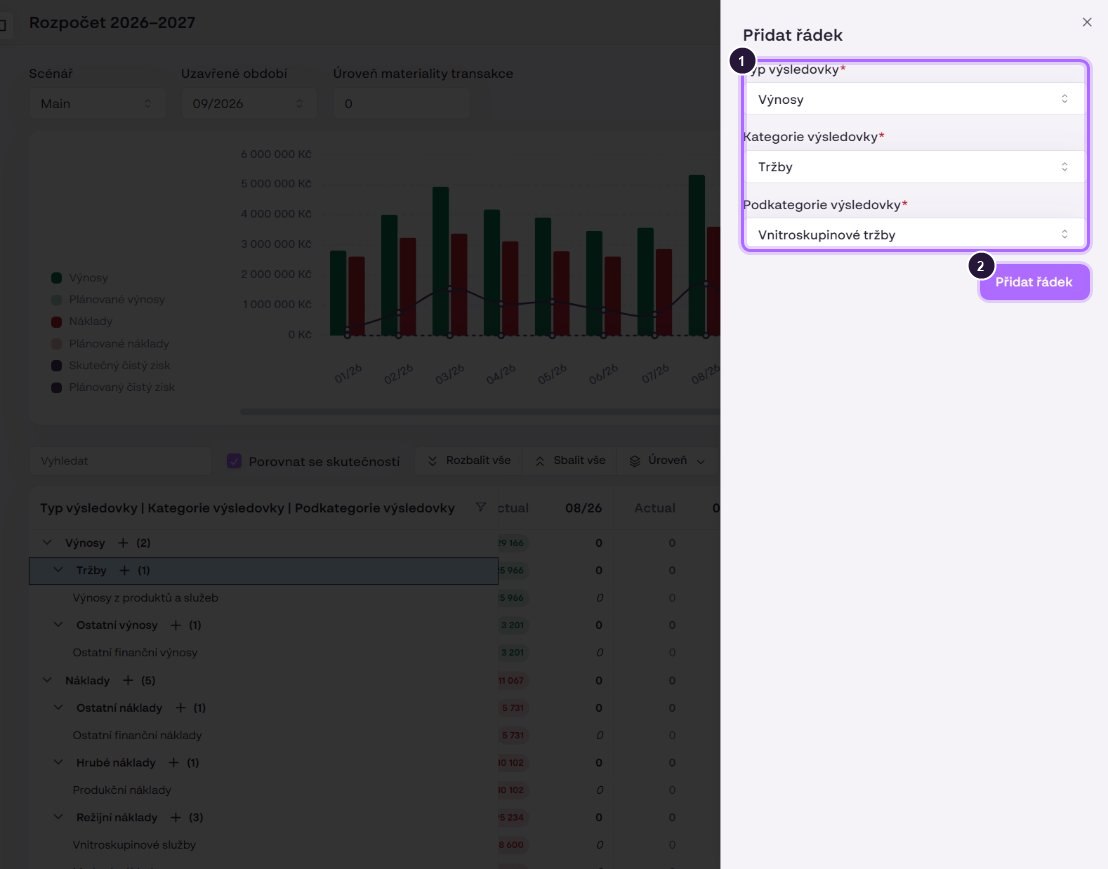
The “Add row” panel opened from the Revenue row.
The added row “Intragroup revenue”. The number next to Revenue increased to (2).

The number in brackets next to a parent row is the count of child rows. If an item is missing in the code list, add it first in the company detail under Categorization › Categories.

Request quote for clear insights