Left menu
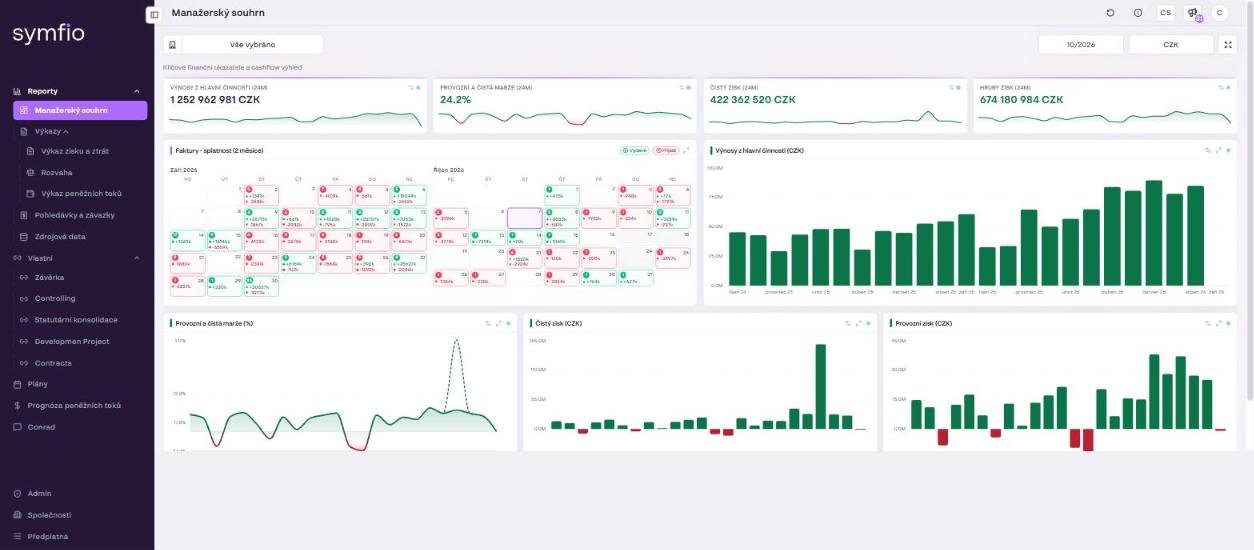
The dark purple panel on the left is the main navigation. The Symfio logo sits at the top, followed by menu items grouped by purpose. Collapse or expand the panel with the icon in the top-left corner of the header – on a smaller screen this gives your tables more room.
| Menu group | Items | Purpose |
|---|---|---|
| Reports | Executive summary · Statements (Income statement, Balance sheet, Cash flow statement) · Receivables and payables · Source data | Standard financial reports built on your accounting data. Source data lets you check the raw journal entries that were loaded. |
| Custom | Items you create yourself (for example a closing report or a controlling page) | Custom static reports or external links (for example to SharePoint). |
| Plans | Income statement plans | Budgets and forecasts of the income statement that are compared with actuals. |
| Cash flow forecasts | List of cash flow forecasts | Planning of cash inflows and outflows for future months. |
| Conrad | AI controller | Ask questions about statements, cash flow and receivables in plain language. |
| Bottom | Companies · Subscriptions | Administration: companies, data sources, categorization, users and subscriptions. |
Note: The menu shows only the items you have permission to see. If a report is missing, ask the administrator of your company to grant you access (see Managing users and roles).
Page header

The top-right corner of every page contains four controls:
- Icon i – the Documentation link, which opens this help center.
- Language switch (for example EN) – a menu with English / Czech (Angličtina / Čeština). It switches the whole interface, including report names.
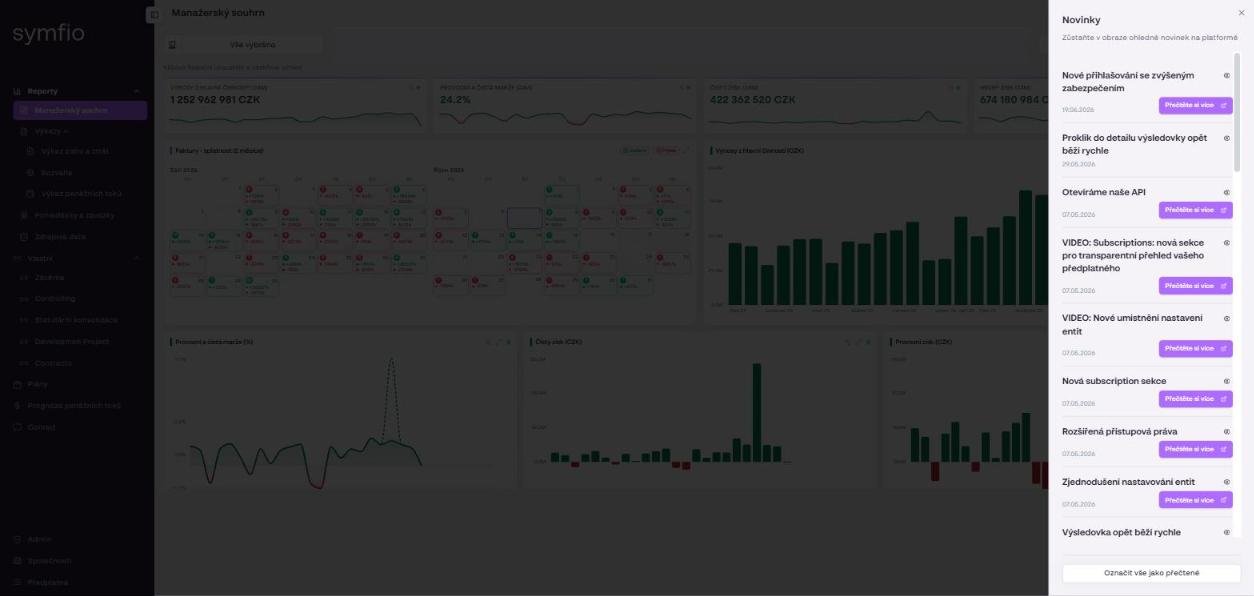
- News (Novinky) – a bell icon with the number of unread items. It opens the News panel, which lists platform updates with a date and a Read more link.
- Avatar – a round icon with your initial. It opens the user menu, where you also sign out.
Language in the page address
The selected language is part of the URL: the Czech interface runs at go.symfio.app/cs/…, the English one at go.symfio.app/en/…. When you send a colleague a link to a report, it opens in the same language you copied it in. You can change the language at any time with the switch in the header.
Quick company switch
If you manage several companies, you do not have to browse the Companies list. Press Ctrl + K to open the Go to company (Přejít na společnost) dialog, start typing the company name and confirm your choice. The same shortcut is shown in the top-right corner of the company detail page.
Tip: Inside the reports themselves you switch companies differently – with the Company selection button in the report toolbar, where you can tick one, several or all companies (consolidated view). The Ctrl + K shortcut takes you to the administration of a specific company.
Data freshness
At the bottom of every report you will find Accounting data update (Aktualizace účetních dat), for example 23. 09. 2026, 19:21. This is the time the data was last loaded from your sources (accounting system or Excel). If you cannot see recent entries in a statement, check this timestamp first and then the status of the data source on the Data sources tab of the company detail.
Where the administration pages are
Administration is concentrated in two items at the bottom of the left menu:
- Companies – the list of companies with the + Add company button. Clicking a company opens its detail with the tabs Details, Data sources, External sources, Categorization (Categories / Lists / Mappings), Users, Settings. Everything that concerns a single company is configured here.
- Subscriptions – the list of subscriptions that group companies and users (see Subscription).
Where to start
If you are new to Symfio, go through these steps in order. Each step is described in detail in its own article.
- Add a company in Companies › + Add company (Adding a company).
- Connect a data source on the Data sources tab of the company detail › + Add data source – an accounting system or an Excel file.
- Check the account mapping on the Categorization › Mappings tab so that every account has an income statement and balance sheet category.
- Invite colleagues on the Users tab and set their roles and access (Managing users and roles).
- Open the reports in the Reports menu – start with the Executive summary and the Income statement.
Frequently asked questions
Why can't I see Companies or Subscriptions in the menu?
These pages are visible to users with the corresponding permission. If you have the Reader role, ask the administrator of your company to extend your access.
What is the Admin item in the left menu?
An internal tool of the Symfio team. It is shown only to Symfio employees and is not available to customers.
How do I find out when accounting data was last loaded?
Look at Accounting data update at the bottom of any report. Details for each source are on the Data sources tab of the company detail in the Last updated column.