Before you start
- Permissions: the import is done by a user with the Administrator role. A user with the Reader role can only view reports and add comments.
- Time required: 5–15 minutes (plus preparing the file).
- What to prepare: an Excel file (.xlsx) based on the Symfio template.
Structure of the Excel file
The file contains up to five sheets. The first row of each sheet must contain the column headers.
| Sheet | Required | Description |
|---|---|---|
| Accounting journal (Účetní deník) | Yes | Accounting transactions with date, amount and accounts. |
| Chart of accounts (Účtová osnova) | No | List of accounts with numbers and names. |
| Cost centres (Střediska) | No | Cost centres. |
| Projects (Zakázky) | No | Projects / jobs. |
| Activities (Činnosti) | No | Types of activities. |
Accounting journal
The most important sheet. Symfio supports two ways of recording transactions – choose the one that matches the export from your accounting system:
| Posting type | When to use | Required columns |
|---|---|---|
| Account / Counter account | You have Account and Counter account columns. | Text, Amount, Account number, Date |
| Debit / Credit | You have Debit and Credit columns. | Text, Amount, Date |
Data format: date as DD-MM-YYYY, decimals separated by a comma (e.g. 1234,56). You can leave columns you do not need in the file – Symfio ignores them.
Other sheets
| Sheet | Required columns |
|---|---|
| Chart of accounts | Account number, Account name |
| Cost centres | Cost centre ID, Cost centre name |
| Projects | Project ID, Project name |
| Activities | Activity ID, Activity name |
Creating a data source from Excel
- Open Companies, select a company and click the Data sources tab.
- Click + Add data source.
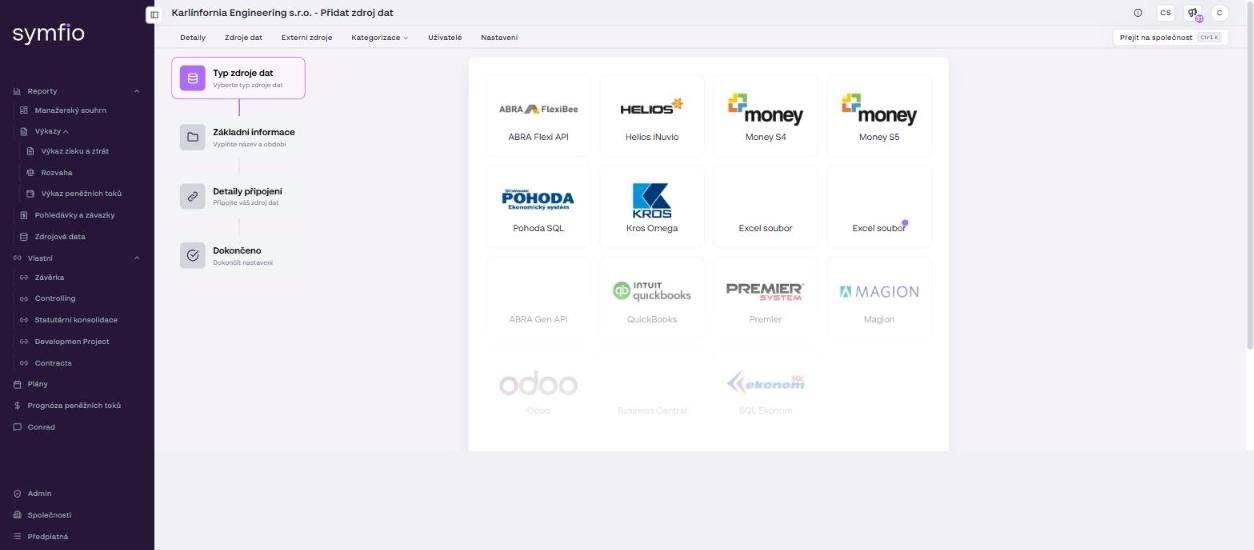
- In the Data source type step, select Excel file.
- In the Basic information step, fill in the
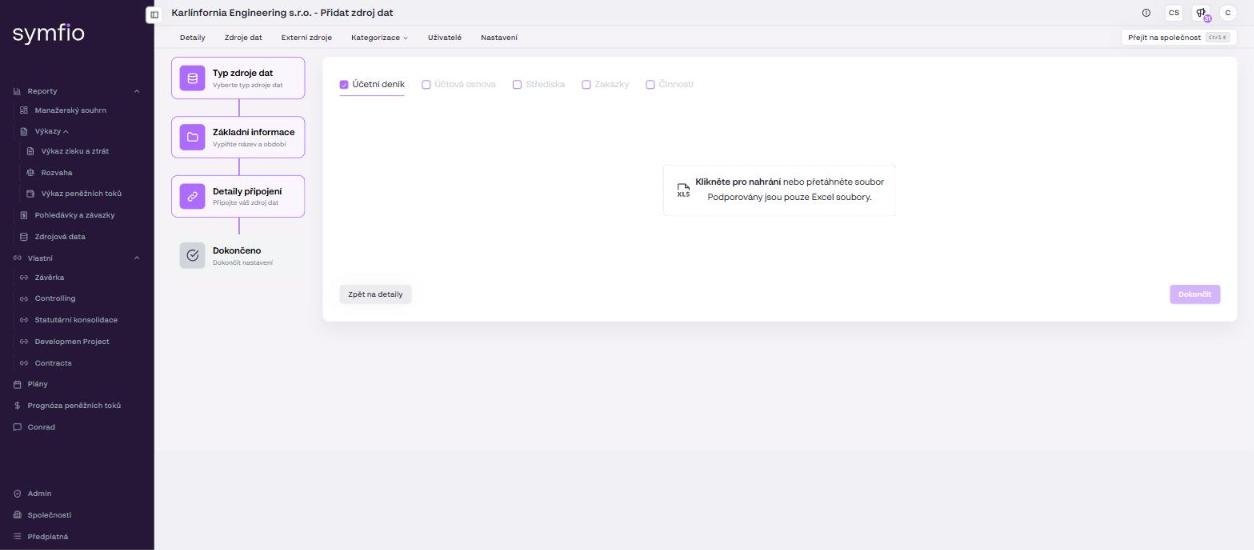
Data source name(e.g. “Excel 2025”) andPeriod from/Period to– the first and last month contained in the file. If you need to recall the file structure, use the link Click here for the Excel import guide (Pro návod jak naimportovat Excel klikněte sem). Click Continue. - In the Connection details step, tick the sheets your file contains: Accounting journal, Chart of accounts, Cost centres, Projects, Activities.
- Drag the file into the Click to upload or drag and drop a file field, or click the field and select the file. Only Excel files are supported.
- Click Finish. The source appears in the table with the status Connected.
Validation and skipped rows
Symfio validates the uploaded data. If it finds errors (for example text instead of an amount, or a missing date), it shows a list of them with row numbers. Correct the file and upload it again.
Some journal rows are skipped automatically and are not loaded:
- rows with an empty or zero amount,
- rows with text instead of a number in the amount field,
- rows with neither account nor counter account filled in (Account / Counter account type),
- rows with neither Debit nor Credit filled in (Debit / Credit type).
After finishing
The data is processed automatically and usually appears in the reports within 60 minutes. Then verify the number of journal entries in the Source data report and check that the chart of accounts and cost centres were loaded. Assign any new accounts to categories in Categorization › Mappings, otherwise they will appear as unassigned.
Tips and common mistakes
Doubled data: If you upload a corrected file for the same period, deactivate the old source in the Data sources tab via the ⋮ menu. Two active sources with the same months are added together in the reports.
Tip: Keep the sheet names and column headers exactly as in the template. The most common cause of a failed import is a renamed sheet or a missing header row.
Note: An Excel source does not refresh automatically. Load further months either as a new source with a following period, or upload the whole file again and deactivate the old source.
Frequently asked questions
Do I have to upload all five sheets?
No. Only the Accounting journal is required. Without the chart of accounts, however, Symfio does not know the account names, and without cost centres, projects and activities the reports cannot be broken down by these dimensions.
Can one file contain several years?
Yes. Set Period from and Period to so that they cover the whole range of entries in the file. Entries outside the period are not loaded.
What if the export from my accounting system has different column names?
Adjust the headers in Excel according to the template at symfio.app/docs/excel-import. The order of the columns does not matter, the names do.
How do I remove the uploaded data?
Deactivate the data source in the Data sources tab via the ⋮ menu. Its data will no longer be included in the reports.