Loading...

Thank you for your message

It has been sent successfully. If you would prefer to book a meeting right away, choose your preferred time.

Successfully sent

Your e-mail has been successfully subscribed to the newsletter

Want to know more?
Let's meet up!

What will happen after completing the questionnaire?

  1. We will contact you with an offer of dates
  2. Together, let’s take a look at how Symfio can help you and how the app works
  3. Let’s take a look at your current financial management system
  4. We will agree on the terms of cooperation and possible customization to suit your needs
  5. We will guide you through the entire implementation process

By submitting you confirm that you are aware of the processing of personal data.

The plan in the Income statement

A saved plan can be displayed in Statements › Income statement.

1 min read Updated 15. 10. 2026
  1. In the value settings click the Plan button.
  2. Choose the plan and scenario and add them with +. Each plan/scenario pair is a separate PLN column.
  3. Choose the values: current year (PLN), fiscal year, current year YTD, or totals for the selected period or fiscal year.
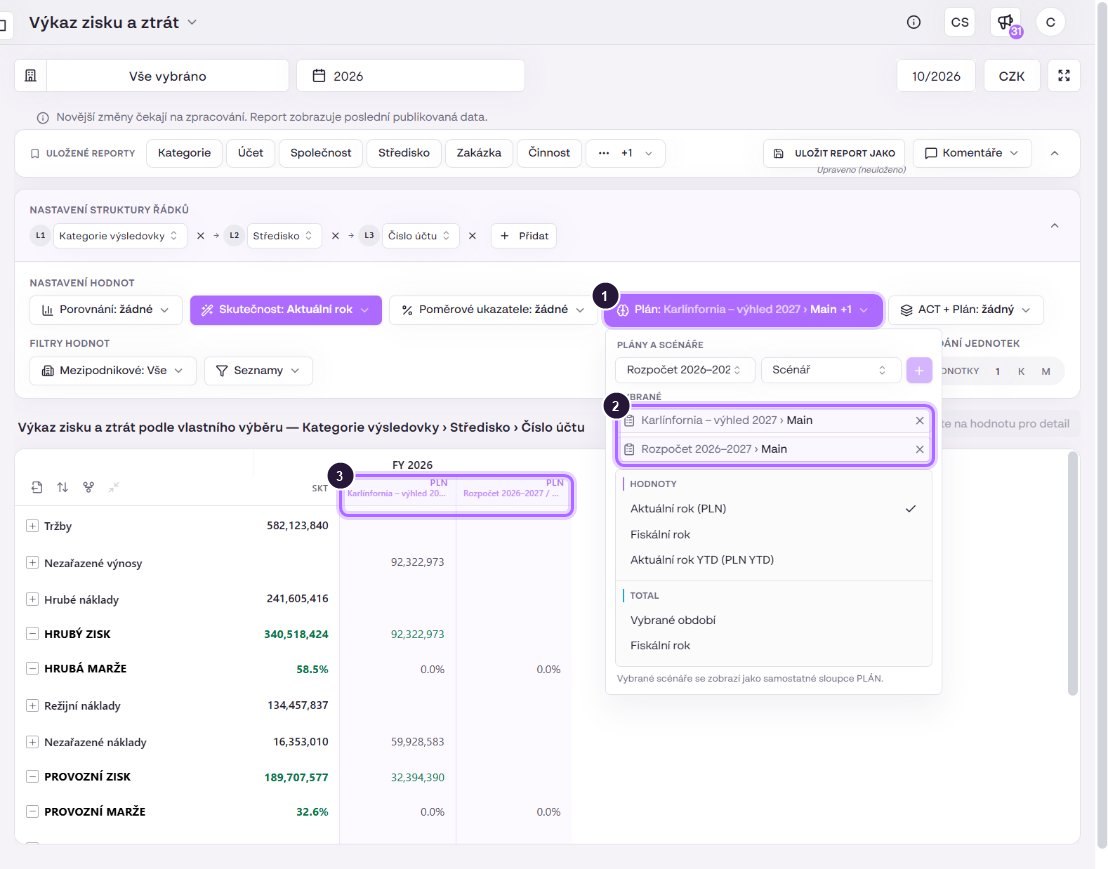
Choosing plans and scenarios in the Income statement.

The ACT + Plan option adds a column that takes actuals for closed months and the plan for the rest of the year, giving you a full-year estimate (landing).

Display delay: statements read data from the analytical warehouse. A saved plan appears in the statement only after processing. Until then the statement reports that newer changes are waiting to be processed and the plan column may be empty. If processing fails, use the re-check link or contact support.

Request quote for clear insights