Before you start
- Permission: a company can be added by a user with the Administrator role.
- Time required: 2–5 minutes.
- Prepare: the company registration number (IČO – for Czech and Slovak companies the remaining details are filled in automatically), the name of the subscription the company belongs to and, optionally, a PNG logo up to 1 MB.
| Field | Required | Note |
|---|---|---|
Subscription (Předplatné) |
No | The subscription the company belongs to (see Subscription). |
Company registration number (IČO společnosti) |
Yes | After entering it, use the Fill in company data button. |
Company name |
Yes | Filled in automatically from the registration number (CZ/SK). |
Company VAT ID (DIČ) |
No | Filled in automatically from the registration number (CZ/SK). |
Company street |
Yes | Filled in automatically from the registration number (CZ/SK). |
Company country |
Yes | Select from the list. |
Currency |
Yes | Czech koruna (CZK) / Euro (EUR) / US dollar (USD). |
Company logo |
No | PNG, max. 1 MB. Shown in the company list and in reports. |
Parent entity |
No | The parent company within a group. |
Income statement subcategorization |
No | Default / Custom. |
Adding a new company
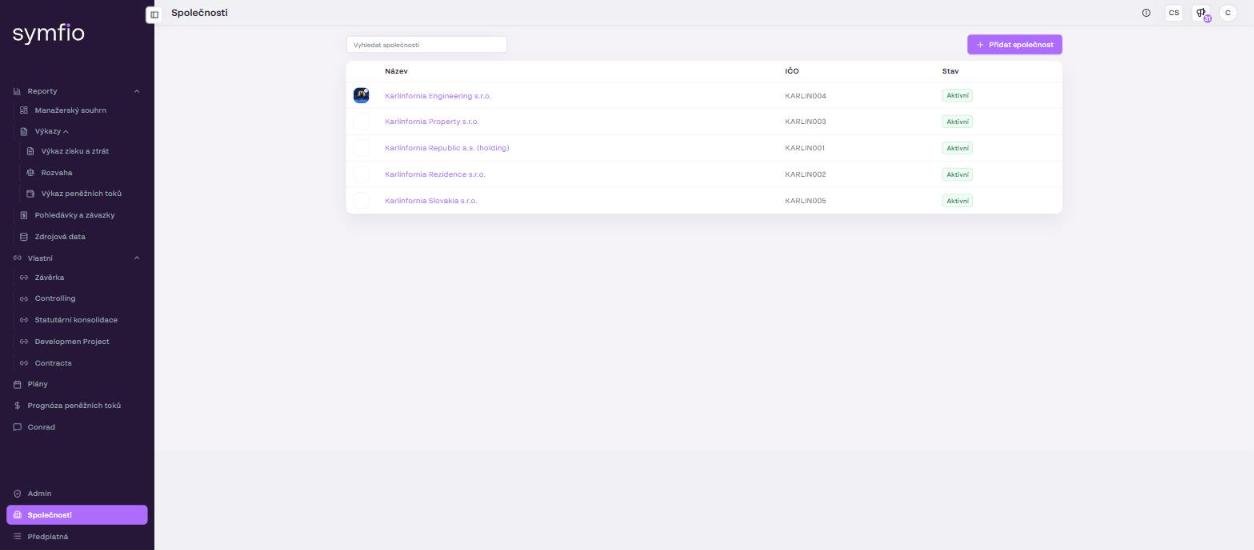
- Click Companies in the left menu.
- Click + Add company. The Add company form opens.
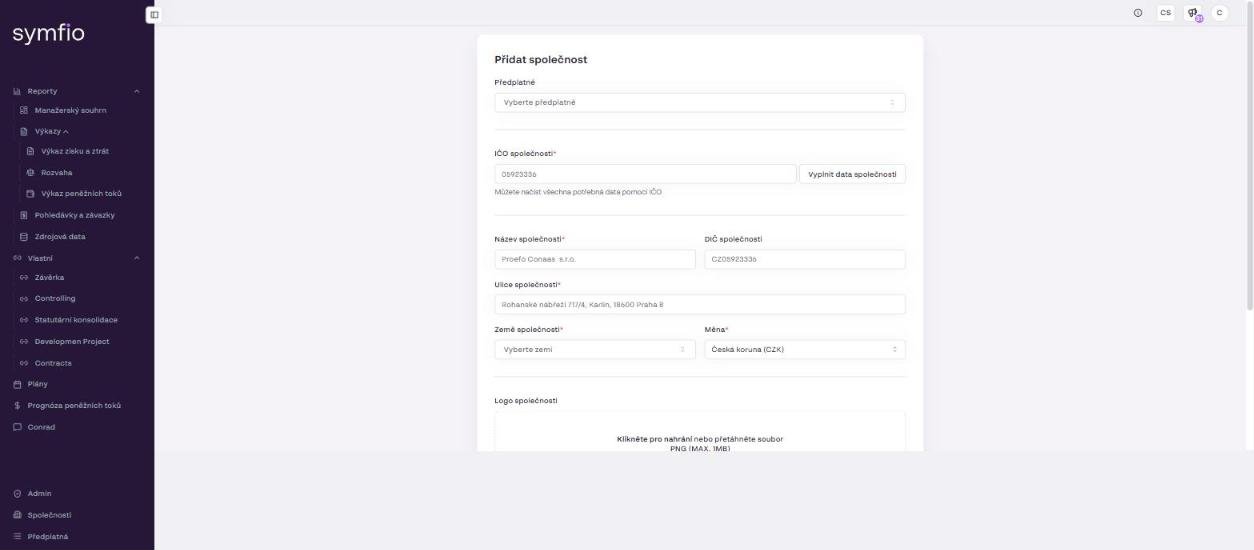
- Select the subscription the company should belong to in the Subscription field.
- Enter the Company registration number and click Fill in company data (Vyplnit data společnosti). Symfio loads the name, VAT ID and address from public registers.
- Check the pre-filled Company name, Company VAT ID and Company street. For companies outside the Czech Republic and Slovakia, fill them in manually.
- Select the Company country.
- Select the Currency – the currency the company keeps its books in (
Czech koruna (CZK),Euro (EUR)orUS dollar (USD)). - Optionally upload a Company logo – click the field or drag and drop a PNG file up to 1 MB.
- Select a Parent entity if the company is part of a group. Leave the field empty for a standalone company or for the parent company of a group.
- Choose the Income statement subcategorization:
Defaultcreates a set of recommended Symfio income statement subcategories,Customleaves the list empty for your own structure. - Click Add company. To leave the form without saving, click Back to companies.
Tip: If in doubt, choose the Default subcategorization. The default subcategories (for example Personnel costs, Depreciation, Revenue from products and services) allow accounts to be assigned automatically in the mapping. You can add custom categories at any time on the Categorization › Categories tab.
Warning: Choose the company currency according to the currency of its accounting. A foreign-currency entity within a group is converted in consolidated reports at a fixed annual rate (the rates are listed in Source data › Exchange rates).
What to do after adding a company
After saving, the company detail opens with the tabs Details, Data sources, External sources, Categorization, Users, Settings. The new company has no data yet – continue as follows:
- Connect your accounting system or an Excel file on the Data sources tab › + Add data source.
- Check the parameters on the Settings tab (revenue and expense account classes, VAT rates) – see Company settings.
- Invite users on the Users tab – see Managing users and roles.
Editing company details
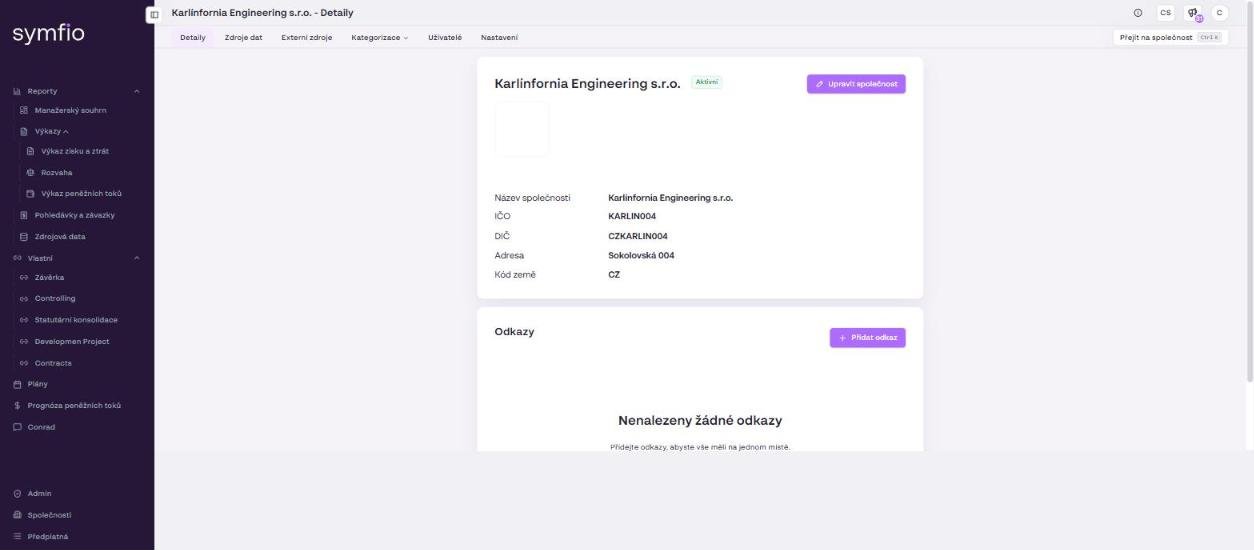
- Open Companies in the left menu and click the company (or press Ctrl + K).
- Click Edit company on the Details tab.
- Change the fields you need. The form has the same fields as when adding a company, with the Subscription pre-filled; this is also where you change the Parent entity or replace the logo.
- Click Edit company to save the changes.
Adding a link to a company
In the Links section of the Details tab you can attach links to internal documents, shared folders or a website so that everything is in one place.
- Click + Add link in the Links section.
- Fill in the display name of the link and its URL.
- Save the link. It appears in the list in the Links section.
Switching between companies
There are two ways to switch companies, depending on what you want to do:
- Company administration (data sources, users, settings): press Ctrl + K and pick the company in the Go to company dialog, or open the Companies list and use the Search companies field.
- Reports: click Company selection in the report toolbar, tick one, several or Select all, and confirm with Apply. Selecting several companies shows a consolidated view.
Frequently asked questions
Can I have several companies under one account?
Yes. The number of companies is not limited; they are grouped into subscriptions and, optionally, into groups via the Parent entity field. User access is set separately for each company.
Why were the details not filled in automatically?
Automatic completion from public registers works for companies registered in the Czech Republic and Slovakia. For foreign companies, enter the name, VAT ID and address manually. Also check that you clicked Fill in company data after entering the registration number.
How do I change the parent entity?
In the company detail click Edit company, select a new value in the Parent entity field and save with Edit company.
The logo did not upload. What should I check?
The logo must be a PNG file smaller than 1 MB. Larger files or other formats (JPG, SVG) are not accepted by the form.