Typing values
- Expand the rows with Expand all.
- Double-click a cell at the lowest level (numbers in italics) or click it and start typing.
- Enter the amount and confirm with Enter.
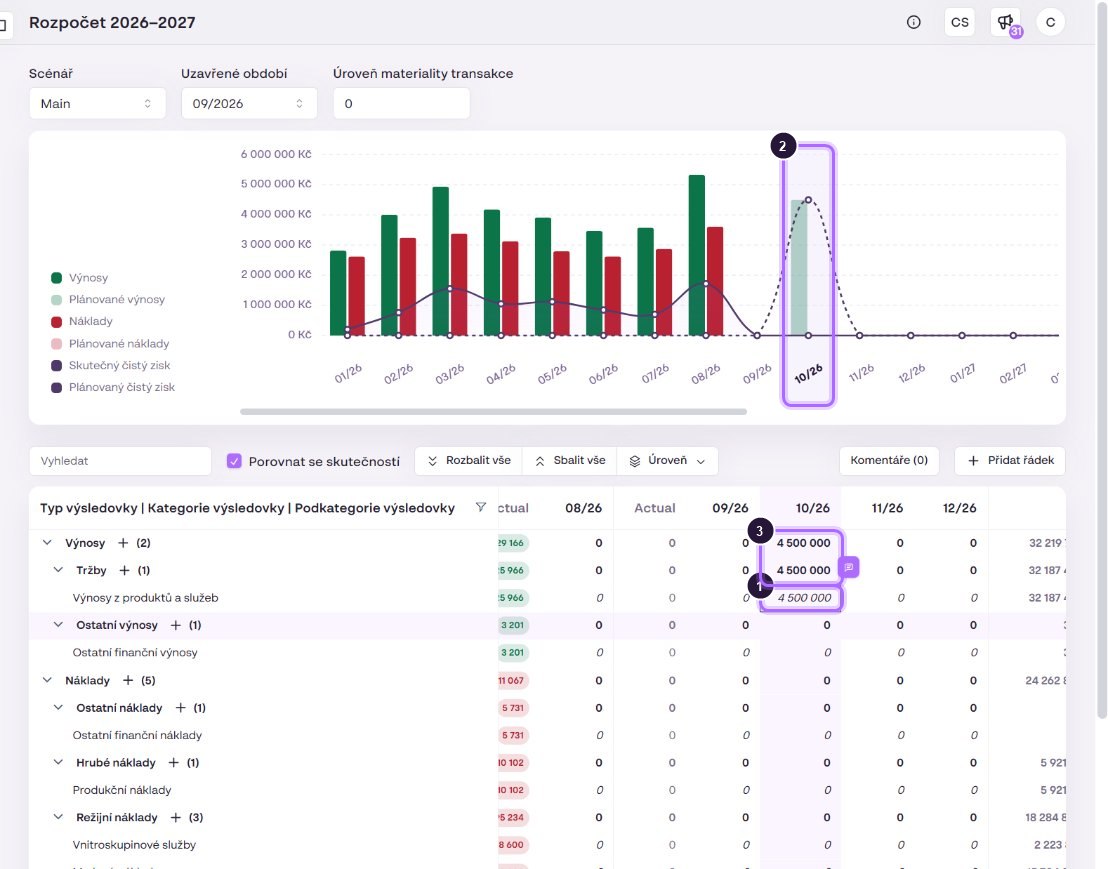
- The edited cell.
- The chart shows planned revenue right away.
- Parent rows are totals and cannot be overwritten.
Copy and paste
The table works like Excel. Click a cell, copy with Ctrl+C, select target cells (click and Shift+click) and paste with Ctrl+V. A whole row of months copied from Excel is pasted the same way: click the first month and paste.
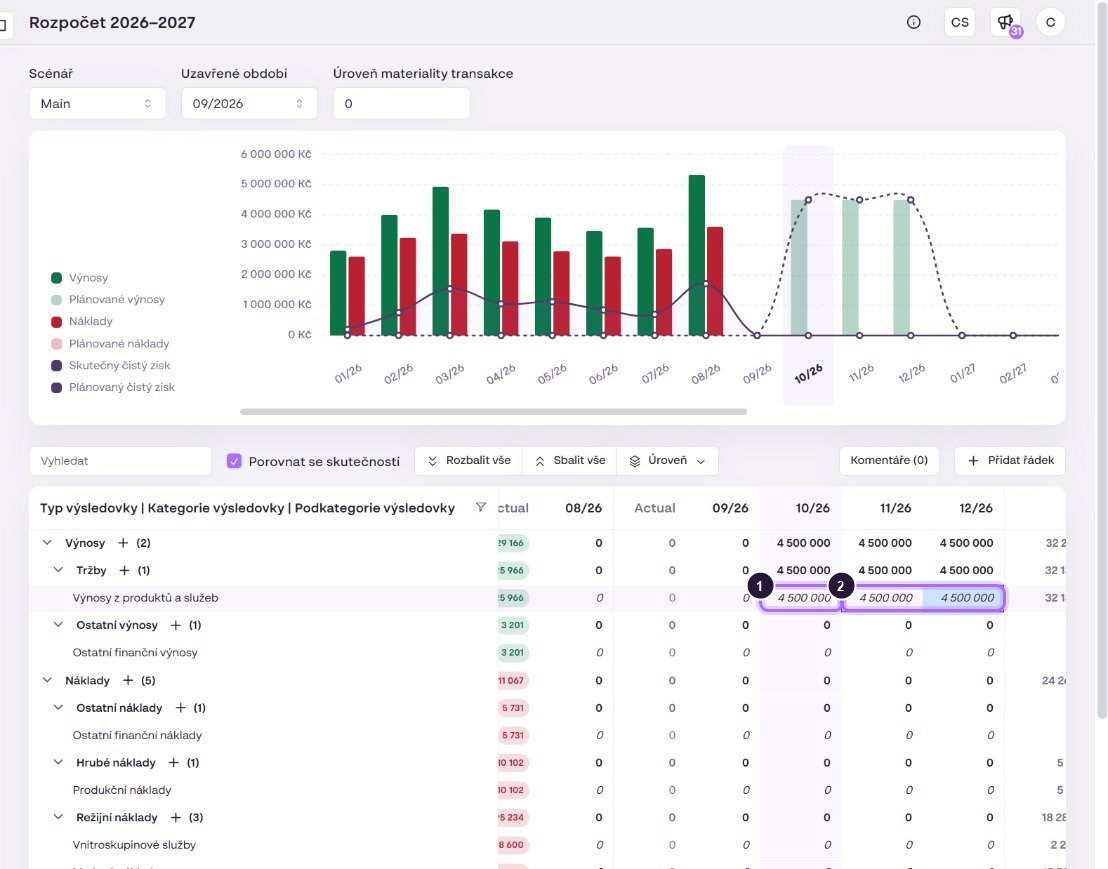
Pasting across the year end: between December and January there is a yearly total column (two with comparison on). When pasting an Excel row across the year end, these columns “consume” values and the plan shifts. Paste each year separately, or insert empty cells in Excel where the total sits.
Saving
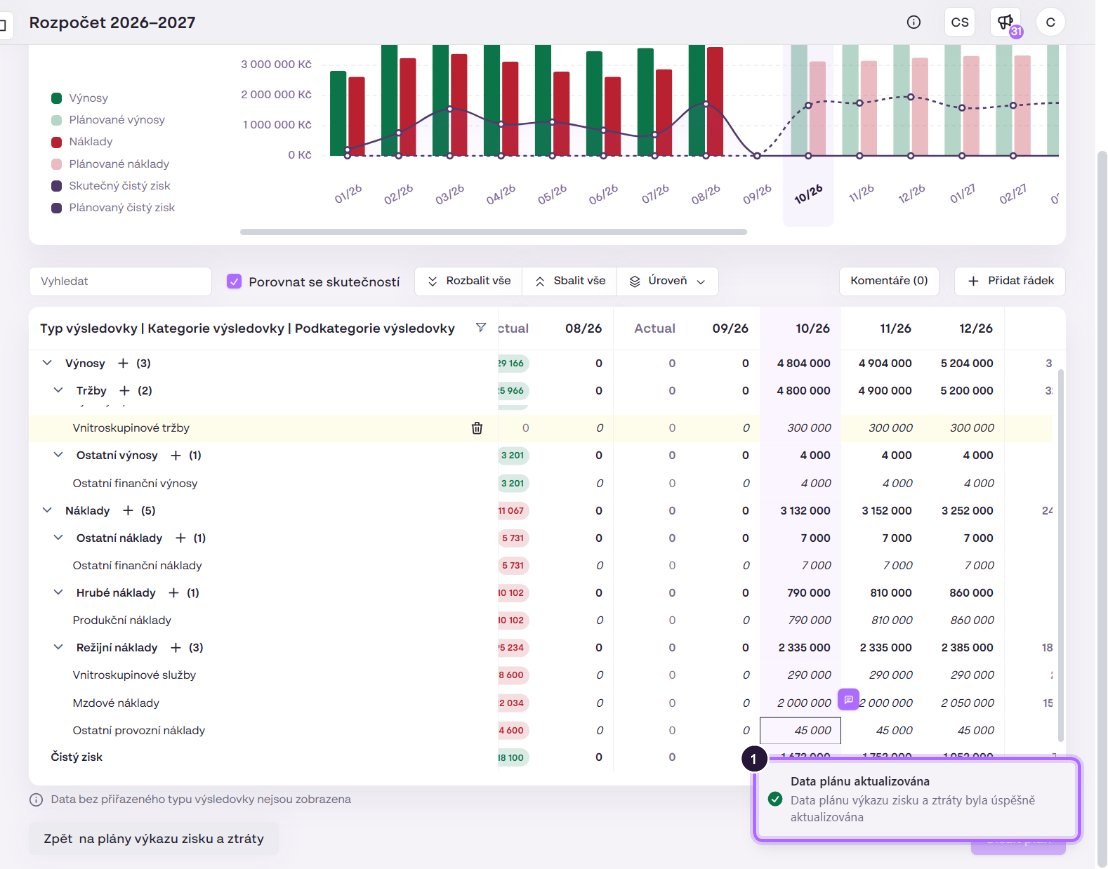
Changes stay in the browser until you click Save plan. The button is active only with unsaved changes. After saving a confirmation that the plan data were updated appears.
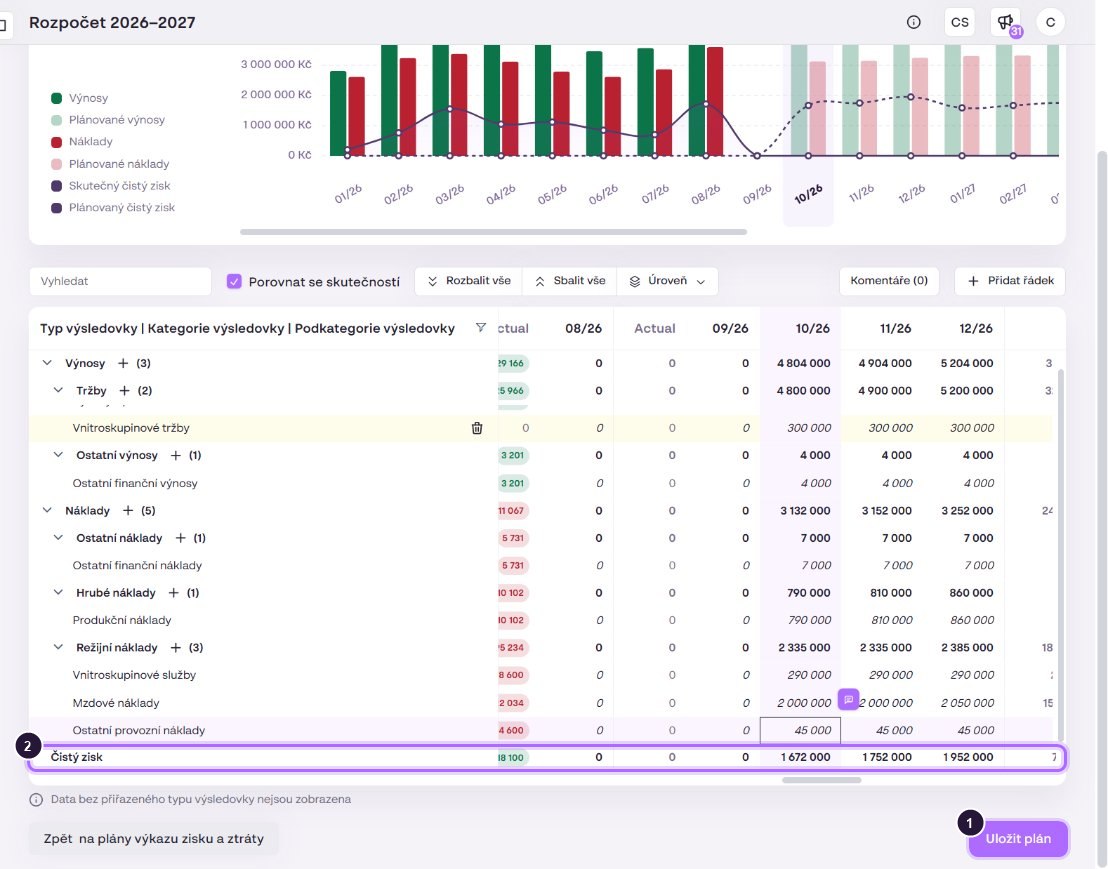
Signs: enter expenses as positive numbers, as you see them in the Actual column. Net profit = Revenue − Expenses.