Loading...

Thank you for your message

It has been sent successfully. If you would prefer to book a meeting right away, choose your preferred time.

Successfully sent

Your e-mail has been successfully subscribed to the newsletter

Want to know more?
Let's meet up!

What will happen after completing the questionnaire?

  1. We will contact you with an offer of dates
  2. Together, let’s take a look at how Symfio can help you and how the app works
  3. Let’s take a look at your current financial management system
  4. We will agree on the terms of cooperation and possible customization to suit your needs
  5. We will guide you through the entire implementation process

By submitting you confirm that you are aware of the processing of personal data.

Creating a plan

You create a new income statement plan in a few steps: choose the type, company, years and row structure. Symfio then loads the history from accounting.

2 min read Updated 15. 10. 2026
  1. In the plan list click Add plan.
  2. Choose Budget or Forecast.
  3. Pick the company in Select entity. You can filter the list by typing.
  4. Fill in the Name, e.g. “Budget 2026–2027”.
  5. Set From year and To year.
  6. Set the row structure in Dimension 0 to Dimension 5 (see Choosing dimensions).
  7. Click Save. Symfio creates the plan, loads the history and opens the detail.
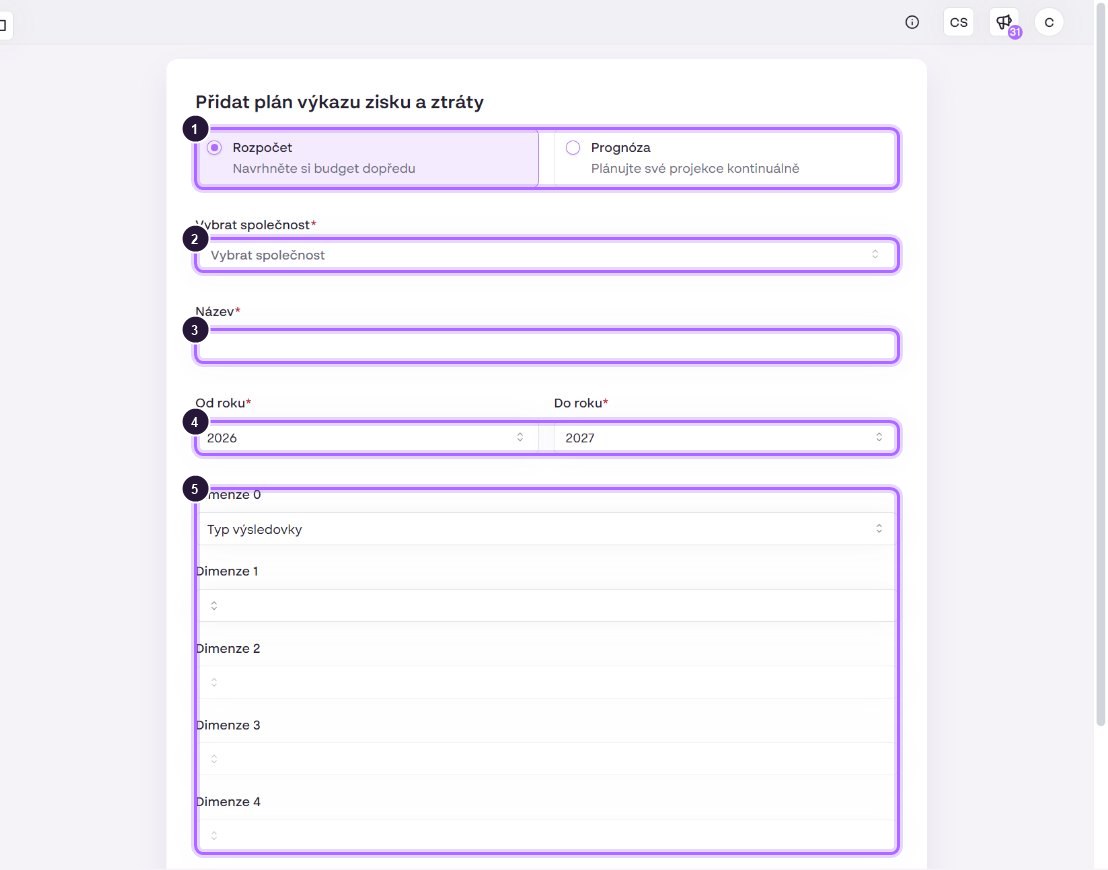
The empty “Add income statement plan” form.
  1. Plan type.
  2. Company the plan is for. A plan is always for one company.
  3. Plan name, shown in the list and when selecting a plan in statements.
  4. Year range. From year 2021–2031, To year 2026–2036.
  5. Row dimensions. Dimension 0 is pre-filled with PL Type.
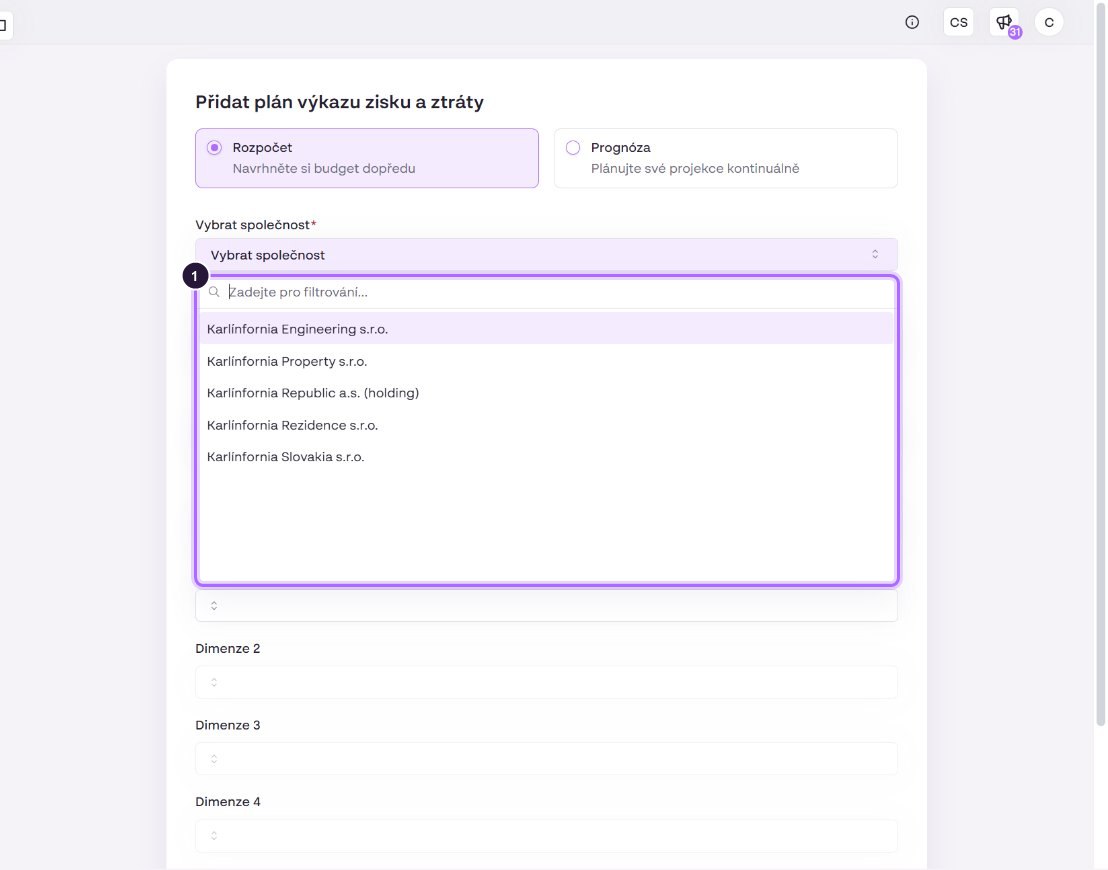
Selecting a company with search.
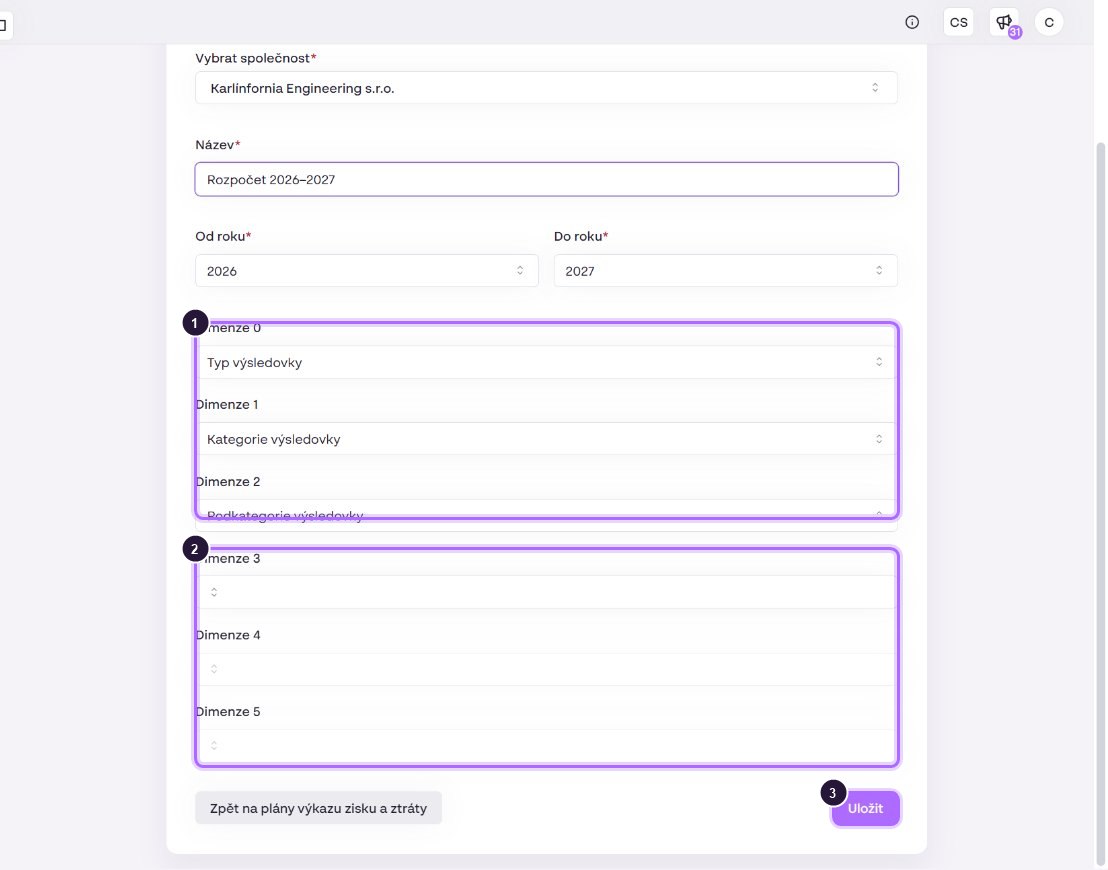
The filled form: PL Type › PL Category › PL Subcategory.
  1. The selected dimensions form the row hierarchy from left to right.
  2. The next dimension unlocks only after the previous one is filled. A value used above is no longer offered.
  3. Save creates the plan.

Billing: by creating a plan you agree that it will be billed at the start of next week according to the price list. Create test plans with care.

Request quote for clear insights