Before you start
- Permissions: categories and mappings are edited by a user with the Administrator role who has the
View categories data management(Zobrazit kategorie management dat) andView mappings data management(Zobrazit mapování management dat) access switches enabled for the company. - Time required: 20–40 minutes, depending on the size of the chart of accounts.
- Have ready: the internal balance sheet structure you want (which accounts belong to which groups) and the company’s chart of accounts.
How the balance sheet is structured in Symfio
Every balance sheet account has three levels of classification in the mapping. Together they form the row hierarchy of the report.
| Field | Meaning | Who sets it |
|---|---|---|
Balance sheet type (Typ rozvahy) |
The main part of the balance sheet: Assets, Liabilities and equity or Transition accounts. It decides whether and where the account appears in the balance sheet. |
The system. You only check the value. |
Balance sheet category (Kategorie rozvahy) |
The main breakdown within a type, for example Equity, Short-term liabilities, Short-term assets, Taxes or Cash. |
A default set from Symfio; you can add custom ones. |
Balance sheet subcategory (Podkategorie rozvahy) |
A detailed breakdown within a category, for example Profit and loss, Share capital, VAT, Employees, Payables, Receivables or Bank. |
A default set from Symfio; you can add custom ones. |
Important: The balance sheet type is a fixed parameter. Do not change it. It builds the basic skeleton of the balance sheet automatically. Items that do not belong to the balance sheet by their type (off-balance-sheet items) are not loaded into the Balance sheet report. This leaves you free to focus on the detailed breakdown through categories and subcategories.
1. Check and add balance sheet categories
- Click Companies in the left menu and select the company whose categories you want to edit.
- Open the Categorization tab and choose Categories from the menu.
- Go to the Balance sheet categories (Kategorie rozvahy) tab.
- Review the existing categories. The table has the columns
Value in English,Value in CzechandCustom– the valueDefaultmarks a system category, the valueCustommarks your own category. - If you need a new category, click + Add category and fill in the name in English and Czech.
- Save your changes with Save categories.
Note: Categories marked Default are predefined by the system and cannot be edited. You can only edit categories marked Custom. The application also warns that by editing custom categories you lose the option of having them assigned automatically. Custom categories therefore have to be assigned to accounts manually in the mapping.
2. Check and add balance sheet subcategories
The Balance sheet subcategories tab is used for a more detailed breakdown of the individual categories.
- In Categorization › Categories, open the Balance sheet subcategories (Podkategorie rozvahy) tab.
- Review the existing subcategories, for example
Employees,Payables,ReceivablesorBank. - Click + Add category to create a new subcategory.
- Fill in the name in English and Czech.
- Click Save categories.
Tip: Create custom subcategories only when you need a finer breakdown of the balance sheet for internal reporting. The fewer custom items you have, the easier the mapping is to maintain. As with categories, only items marked Custom can be edited.
3. Map accounts to the balance sheet structure
In Categorization › Mappings you check how individual accounts are classified in the balance sheet structure. The columns that matter for the balance sheet are Balance sheet type, Balance sheet category and Balance sheet subcategory.
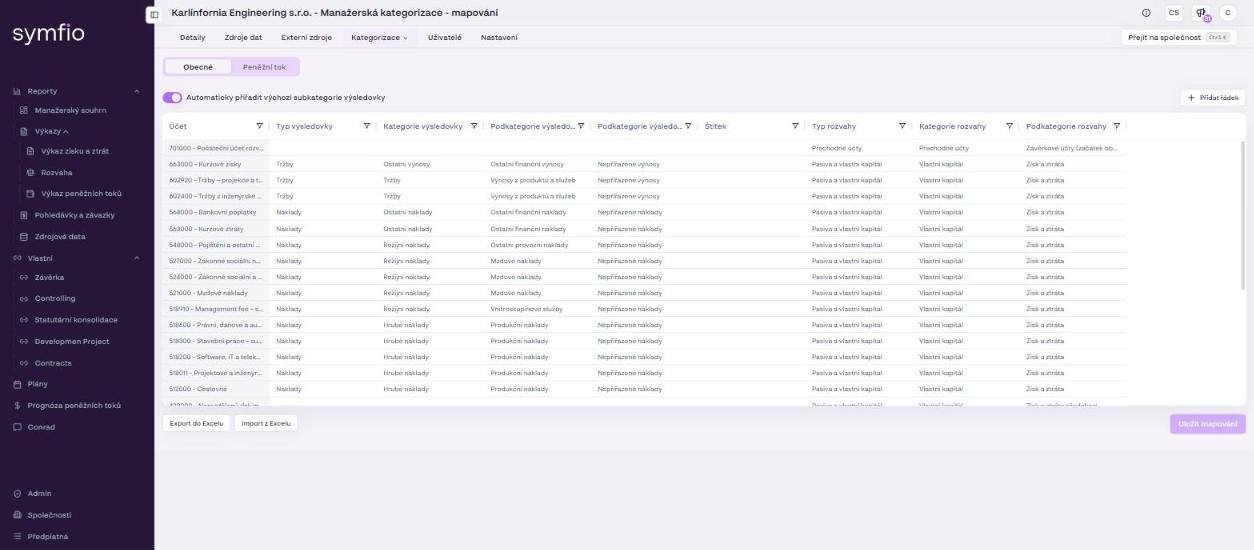
- Open the Categorization tab and choose Mappings. Stay on the General (Obecné) tab.
- Find the account you want to check or edit in the table.
- Check the value in the
Balance sheet typecolumn. Do not change it. - Click into the
Balance sheet categorycell and select the appropriate category. - Click into the
Balance sheet subcategorycell and select the appropriate subcategory. - Check all rows of the account if the same account appears in the table more than once (for example when categorising by cost centre).
- Save your changes with Save mappings.
Example: An account with the balance sheet type Liabilities and equity is placed in the category Equity and the subcategory Profit and loss.
Tip: Work from general to detailed: first check the balance sheet type, then choose the category and finally the subcategory. For a large chart of accounts use Export to Excel and Import from Excel – edit the mapping in bulk in a spreadsheet and upload it back.
4. Check the resulting balance sheet
Once the categories are in place and the mapping is complete, check the resulting balance sheet.
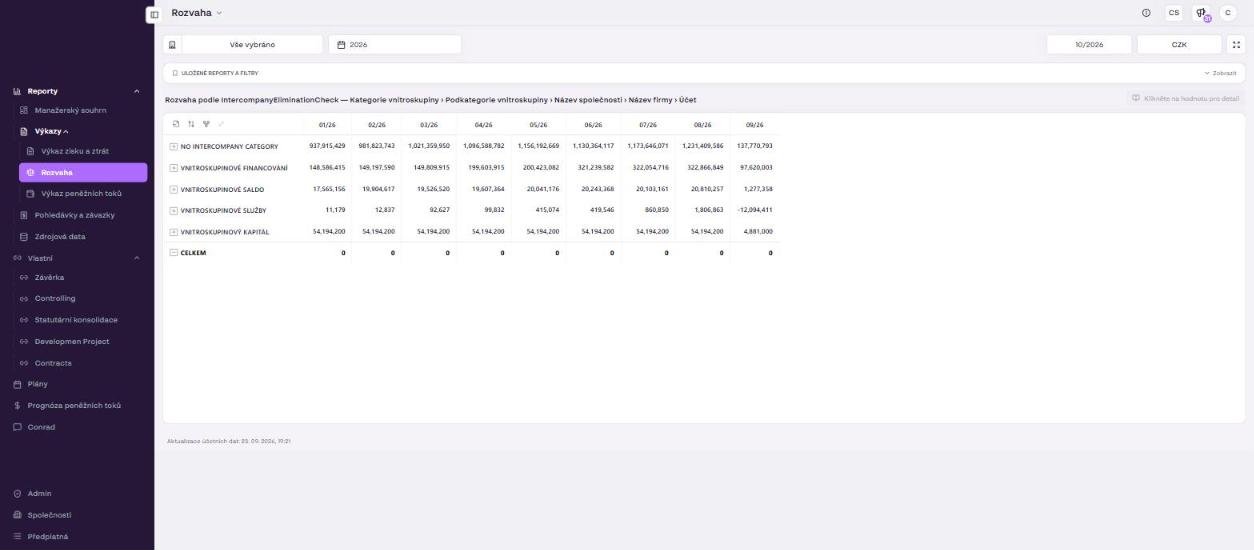
- Open Reports › Statements › Balance sheet in the left menu.
- Click Show in the Saved reports and filters bar and select the saved report Category (Kategorie).
- Select the company in the company selector and the required period in the period selector. Confirm both with Apply.
- Check the structure of the report. The row hierarchy is shown in the view title, for example Balance sheet type › Balance sheet category › Balance sheet subcategory › Account › Company name.
- Expand rows with the + icon on a row or with the Expand to the next hierarchy level icon above the table.
- Verify that each item appears under the correct type, category and subcategory. Click a value to open the detail of the accounting entries behind it.
- Return to Categorization › Mappings and fix the classification if an item is in the wrong row or missing from the report.
Result: The Balance sheet report in the Category view shows the balance sheet structure by balance sheet type, category, subcategory, account and company – exactly as defined by your mapping.
Tips and common mistakes
| Problem | What to check |
|---|---|
| An item does not appear in the balance sheet | Check the balance sheet type – off-balance-sheet items are not loaded. Also check that the account has a balance sheet category and subcategory filled in. |
| An item is in the wrong part of the balance sheet | Check the balance sheet category and subcategory in Mappings. |
| The same account shows differently for different cost centres | Check the mapping of each account and cost centre combination – the same account can have several rows in the table. |
| A change does not show in the report | Make sure you clicked Save mappings (or Save categories). Also check the “Accounting data updated” time in the report footer. |
Caution: Unsaved changes in mappings and categories are lost when you leave the page. Save as you go.
Frequently asked questions
Can I rename a default balance sheet category?
No. Default categories (value Default in the Custom column) are defined by the system. If you need a different name or breakdown, create a custom category or subcategory and assign it to the accounts in the mapping.
Why do I see an unassigned row in the balance sheet?
The account has a balance sheet type but is missing a balance sheet category or subcategory. Fill them in under Categorization › Mappings and click Save mappings.
Does the setup apply to all companies in the group?
No. Categories and mappings are set per company. In a consolidated view (several companies selected) rows are combined by category name, so use the same set of categories and subcategories across all companies.
Can I break the balance sheet down other than by category?
Yes. In the Saved reports and filters bar choose another saved report (for example Account or Company), or use Create custom report to build your own order of dimensions.