Before you start
- Permissions: access to the statement and to the saved static report.
- Time required: 2–3 minutes to enable comments, then depending on how many you write.
- Have ready: a saved static report. If you do not have one yet, create it as described in Creating a custom report and choose the Static report type when saving with Save report as.
Static reports only. Comments can be created and used only in static reports, because they are tied to a specific saved state of the data. In a live (visual) report, where values change with every accounting data refresh, they would lose their meaning. If you cannot add a comment in a report, first check that you are working with a static report.
Enabling comments
Comments are not visible in the table automatically. You have to enable them first:
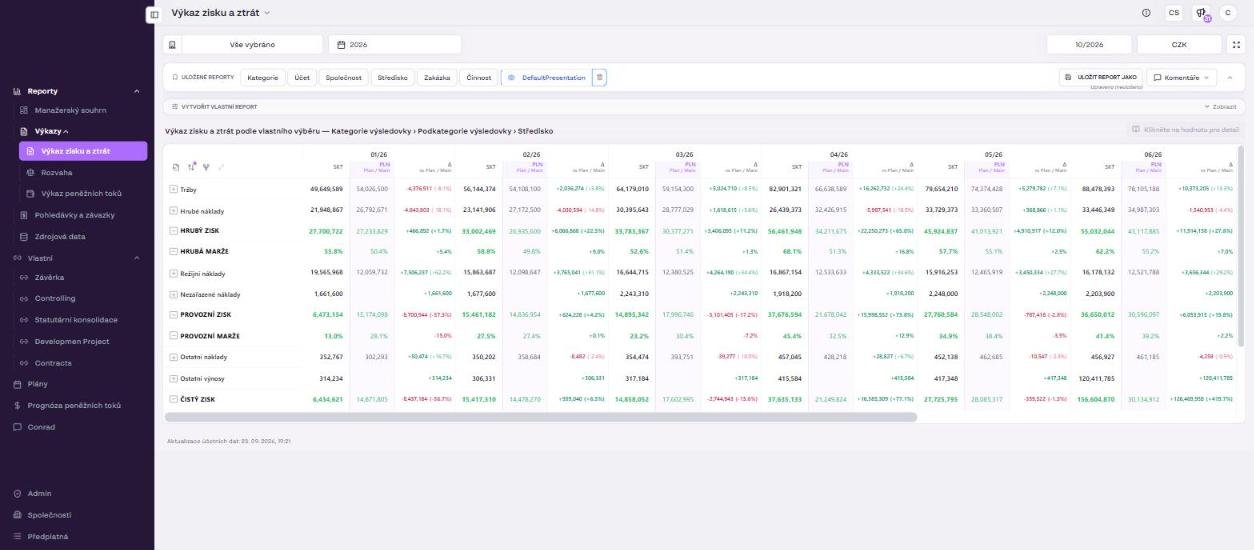
- Open the static report: on the statement page click Show in the Saved reports and filters bar and select the report chip in the Saved reports section.
- Click the Comments toggle in the saved reports bar.
- Select the columns for which comments should be displayed (for example Actual, Plan, Comparison).
- Click the value in the table you want to comment on and write the comment. The option to add a comment appears in the table only after comments are enabled.
Saving comments
Comments are not saved automatically. As soon as you write the first comment, the application warns you with a blue panel and the status bar at the bottom of the screen shows Unsaved changes.
- Write all the comments you want to add to the report.
- Check the status bar at the bottom of the screen.
- Save the comments with the button in the blue panel before you leave or refresh the page.
Warning: if you refresh or close the page without saving, unsaved comments are lost.
Finding your way around comments
- Show Comments lets you quickly browse through all comments in the report.
- Hidden Comments: if a part of the table that contains a comment is collapsed, the bottom panel shows a notice that some comments are hidden. Expand the respective level (with + on the row or the Expand to next hierarchy level icon) to reach the comment.
- The status bar at the bottom of the screen always shows whether you have unsaved changes (Unsaved changes).
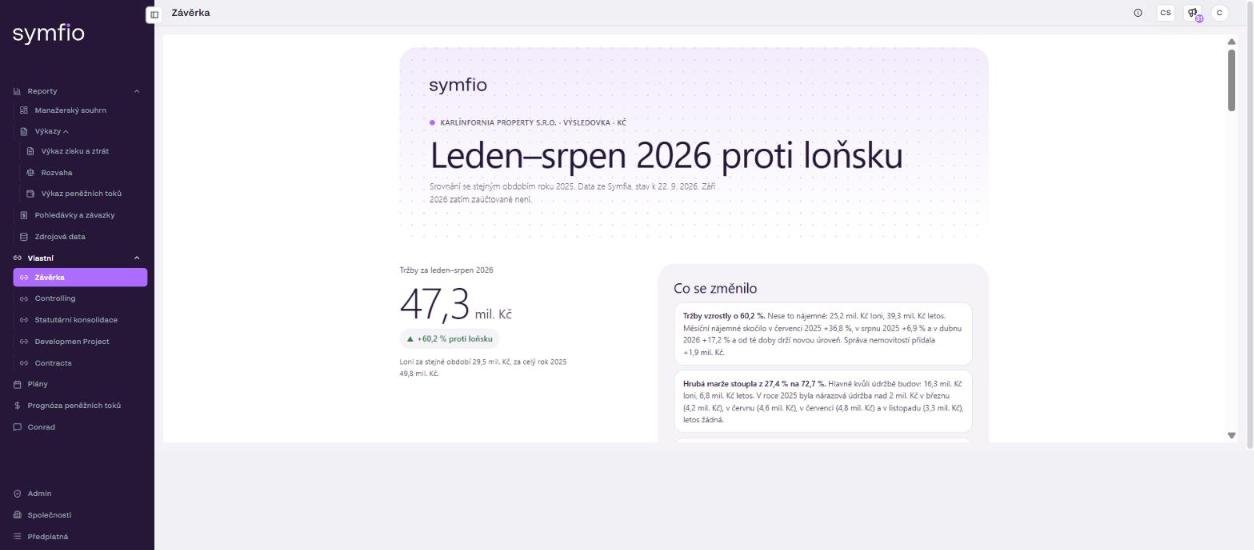
Comments in static reports from the Custom menu: custom static reports in the Custom menu (for example the Závěrka closing report created as a Claude artifact) also support comments. They capture what changed in the period and why.
Tips and common mistakes
| Situation | What to do |
|---|---|
| I do not see any comments in the table | Enable them with the Comments toggle and select the columns (see Enabling comments). |
| I cannot add a comment | The report is not static. Comments work only in static reports. Save the report again with Save report as as a Static report. |
| Comments disappeared after refreshing the page | They were not saved. Watch the blue panel and the Unsaved changes status line and save the comments before leaving the page. |
| A comment exists in the report but I cannot see it | It is probably in a collapsed part of the table. Look at the hidden comments notice in the bottom panel and expand the respective level. |
Tip: comment at the level where the variance arises (for example a specific cost center or account), not only on the total row. Colleagues then do not need to search for the item behind the change.
Frequently asked questions
Can I comment on a live (visual) report?
No. In a visual report the data keeps changing, so a comment would lose its link to the value. Save the current state as a static report and comment on that.
Do my colleagues see the comments?
Comments are part of the saved static report. Anyone with access to the statement and the report sees the saved comments after enabling the Comments toggle.
Can I change the filters of a static report to comment on other rows?
No, the filters of a static report are locked. If you need a different row selection, save a new static report with the required hierarchy and filters.