Correct categorization is the prerequisite for the key statements – the Income statement, Balance sheet and Cash flow statement – and for the other reports and metrics in Symfio (for example the Executive summary or Plans) to work properly.
Before you start
- Permissions: categorization can only be set up by a user with the Administrator role for the given company (permissions View management data categories / lists / mappings).
- Time required: 90–120 minutes, depending on the size of the chart of accounts and the number of dimensions you want to map.
- What to prepare: a connected, active accounting data source with lists of accounts, cost centres, contracts and activities (the Data sources tab must show the status Connected). It also helps to have the target structure of your income statement thought through in advance, for example in Excel.
Where to find categorization
Categorization is configured separately for each company in its company detail.
- In the left menu click Companies and select the company you want to configure (you can also switch quickly with Ctrl+K).
- In the company detail open the Categorization tab.
- From the drop-down choose one of the three parts: Categories, Lists or Mappings.
The recommended order of work is Lists → Categories → Mappings: first check and complete the code lists, then prepare your custom categories, and finally assign reporting dimensions to the accounts.
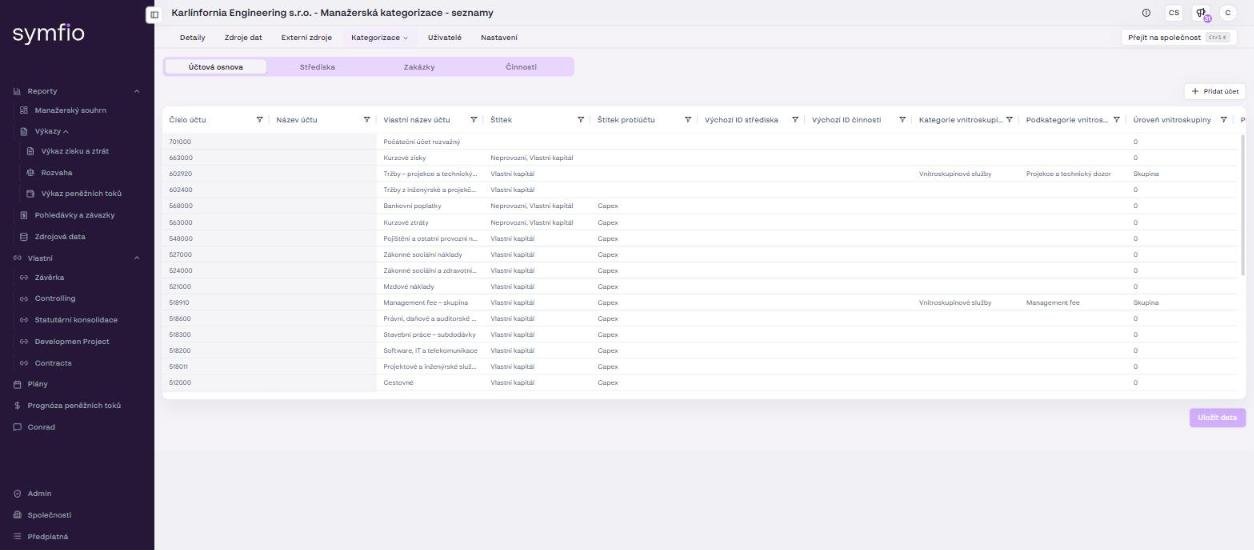
Lists
Once an accounting data source is connected, the chart of accounts, cost centres, contracts and activities are transferred to Lists automatically. Each data type has its own tab: Chart of accounts, Cost centres (Střediska), Contracts (Zakázky) and Activities (Činnosti). Lists are the foundation for mapping reporting dimensions and can be enriched with your own metadata.
Chart of accounts
The Chart of accounts tab shows the analytical accounts transferred from your accounting source. The Account number and Account name columns are informational only and cannot be edited. For each account you can fill in or set:
| Column | How to enter | Description |
|---|---|---|
Custom account name |
type into the cell | Internal account name used for reporting. |
Label (Štítek) |
double-click → drop-down | Reporting category of the account (see Labels below). |
Counter-account label |
double-click → drop-down | Reporting category of the counter-account. |
Default cost centre ID |
type into the cell | Default cost centre assigned to transactions on this account. |
Default activity ID |
type into the cell | Default activity assigned to transactions on this account. |
Intercompany category |
type into the cell | Used for group consolidation – marks intercompany accounts (e.g. Intercompany services, Intercompany balance, Intercompany capital). |
Intercompany subcategory |
type into the cell | More detailed breakdown of intercompany items. |
Labels
Labels mark items by their meaning or function in reporting. With labels you determine, for example, which items enter the calculation of indicators in reports such as the Cash flow statement (direct method) or the Executive summary. In other words, labels give you finer and more flexible control over how individual cost and revenue items appear in analytical views.
- Double-click the
Labelcell of the relevant account. - Pick a value from the drop-down (for example Equity, Non-operating or Capex). Labels can be combined – one account may carry several labels at once.
- Fill in the
Counter-account labelcolumn the same way if the counter-account should be labelled too.
The description of each label and its use is shown in the drop-down directly in the application. Cost centres, contracts and activities have their own set of labels.
Note for groups: For companies operating within a group, consolidation and reconciliation rely – in addition to intercompany categories – on the company’s position in the group hierarchy (parent entity, intercompany level) and on assigning a group counterparty to an account. Before setting counterparties, the profiles of all group companies must be set up correctly (the Parent entity field in the company detail). You verify eliminations in the Balance sheet using the intercompany check view, where the TOTAL row must equal 0.
Adding an account and saving
- If you need to add another analytical account to the chart, click + Add account in the top right.
- Enter the account number and name and confirm with Add.
- When you have finished all edits, click Save data in the bottom right.
Cost centres, Contracts and Activities
The Cost centres, Contracts and Activities tabs show the code lists transferred from your accounting source. For each item you can add:
- a label – by double-clicking and choosing from the drop-down,
- a category (of the cost centre, contract or activity), a responsible person and an employee name – by typing into the cell.
Add a new item with the add button in the top right of the tab (enter the ID and name and confirm with Add). After editing, always click Save data.
Categories
The Categories part contains predefined dimension values for the three key reporting outputs. Default values (marked Default in the Custom column) cannot be edited, but you can extend them with your own items. Every category has a Value in English and a Value in Czech, so it displays correctly in both language versions of the application.
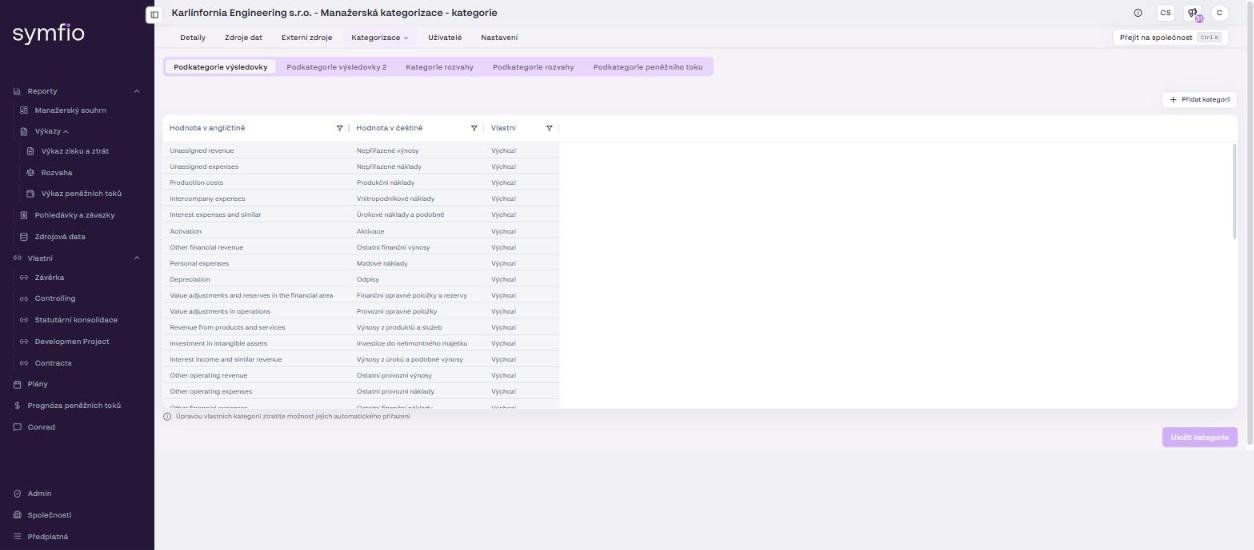
Income statement
- PL Subcategories (Podkategorie výsledovky) – predefined values for the detailed breakdown of the management income statement, for example Revenue from products and services, Production costs, Personnel costs, Depreciation, Income tax or Intercompany costs and revenues. The main PL Categories (Revenue, Cost of sales, Overheads, Other expenses, Other income) are fixed in Symfio.
- PL Subcategories 2 – an optional further level of breakdown. The default values are Unassigned expenses and Unassigned revenue; you can add more.
Balance sheet
- BS Categories – predefined values for the main breakdown of the balance sheet, for example Equity, Current assets, Current liabilities, Taxes, Cash or Fixed assets.
- BS Subcategories – a more detailed breakdown of balance sheet accounts, for example Profit and loss, Share capital, VAT, Receivables, Payables, Cash at bank, Real estate or Prepaid expenses.
Cash flow
- CF Subcategories – predefined values for the detailed breakdown of the cash flow statement, for example Customers, Suppliers, Employees, VAT, Taxes, Dividends or Capital expenditure.
Adding a custom category
- Open the relevant tab (for example PL Subcategories).
- Click + Add category in the top right.
- Fill in the value in English and in Czech and confirm with Add category. The new item shows Custom in the
Customcolumn. - Click Save categories in the bottom right.
Warning: Below the table the application warns that by editing custom categories you lose the option of assigning them automatically. If you rename a custom category, you must map accounts to it manually. See Managing categories for financial reports for details.
Mappings
Mapping is the most important step of categorization. Here you assign reporting dimensions to specific analytical accounts – without correct mapping, data will not display correctly in the output reports. Each table row corresponds to one account from the chart of accounts, and you open the value in a cell by double-clicking. Mapping is split into two tabs: General (Obecné) and Cashflow (Peněžní tok).
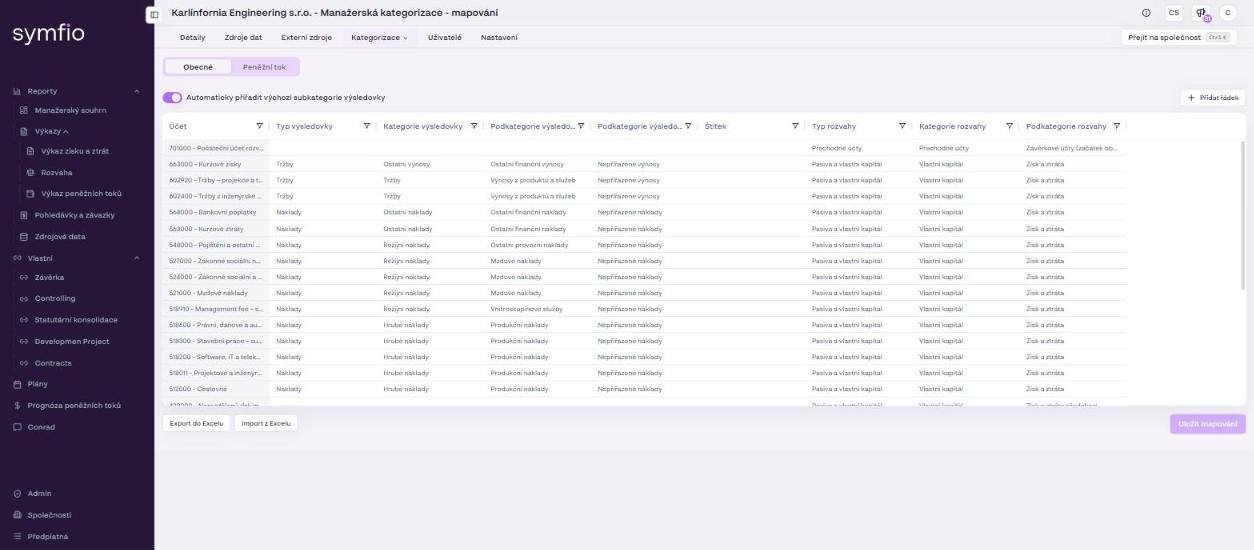
General tab
On the General tab you set the dimensions for the Income statement and the Balance sheet. Above the table is the toggle Automatically assign default PL subcategories, which pre-fills default subcategories based on account numbers; in the top left you find the + Add row button for manually adding a combination missing from the table.
| Column | Required | Meaning |
|---|---|---|
PL Type |
yes (class 5 and 6 accounts) | Determines whether the account is Expenses (class 5) or Revenue (class 6). Without this value the account does not appear in the income statement at all. |
PL Category |
recommended | Main breakdown of the management income statement: Revenue, Cost of sales, Overheads, Other expenses, Other income – according to the nature of the account. |
PL Subcategory |
recommended | More detailed breakdown within the category. Set accounts you do not want to assign to Empty, Unassigned expenses or Unassigned revenue. |
PL Subcategory 2 |
optional | The lowest level of breakdown for class 5 and 6 accounts. Set it only when your reporting needs require it. |
Label |
optional | Supplementary identifier that ensures items are correctly placed in the Income statement and other reports. Can be changed at any time; see Lists › Labels for the meaning of labels. |
BS Type |
yes (class 0 to 4 accounts) | Available values: Assets, Liabilities and equity, Transitory accounts. |
BS Category |
recommended | Main breakdown of the balance sheet (Equity, Current liabilities, Current assets, Taxes, Cash …). |
BS Subcategory |
optional | More detailed breakdown of balance sheet accounts (Profit and loss, Share capital, VAT, Employees, Payables, Receivables, Cash at bank …). |
Note: The default Symfio setup does not include predefined items for PL Subcategory 2. If your management reporting needs them, create them under Categories or contact the Symfio team – we are happy to help prepare and upload them.
Example – mapping expense account 518000:
- Find account
518000in the table. - In the
PL Typecolumn double-click and choose Expenses. - In the
PL Categorycolumn choose Cost of sales. - In the
PL Subcategorycolumn choose Production costs. - If you do not want to break down the items on account 518000 further, leave
PL Subcategory 2empty. Otherwise pick a prepared subcategory 2. - Given the nature of the costs on this account, no label is needed.
- In the
BS Typecolumn choose Liabilities and equity, inBS CategoryEquity and inBS SubcategoryProfit and loss – this way profit-and-loss accounts correctly flow into the result for the period in the balance sheet.
Analytical accounts of classes 0 to 4 are mapped with the same logic, but exclusively to the types, categories and subcategories belonging to the Balance sheet area.
Tip: For accounts you do not want to include in the income statement or balance sheet, set the relevant dimension to Empty.
When you are done, click Save mappings. For bulk checks or edits use the Export to Excel and Import from Excel buttons (described in detail in Mapping accounting data for the income statement and cash flow).
Cashflow tab
On the Cashflow tab you map the dimensions of the Cash flow statement, which Symfio builds using the direct method. Each row here corresponds to one counter-account from the chart of accounts.
| Column | Meaning |
|---|---|
CF Category |
Assigns the account to one of the three basic flows: Operating cash flow, Investing cash flow or Financing cash flow. |
CF Subcategory |
More detailed breakdown within the chosen category – for example Customers, Suppliers, Employees, Prepayments, VAT or Taxes. |
Label |
Supplementary identifier for correct placement of items in the Cash flow statement. Set it the same way as on the General tab. |
When you are done, click Save mappings.
After you finish
After saving all mappings, check the resulting structure under Reports › Statements – specifically in the Income statement, Balance sheet and Cash flow statement. If the structure does not match your expectations, adjust the relevant mapping and save it again. The check procedure is described in Checking the income statement and category mapping in the report.
Tips and common mistakes
Note: Changes in mapping are not reflected in reports immediately after saving, but within about 1 hour. The time of the last update is shown in the footer of every report (“Accounting data update”). The resulting structure can be changed at any time without losing data.
Most common mistake: a missing PL Type on class 5 and 6 accounts, or a missing BS Type on class 0 to 4 accounts. Such accounts do not appear in the statements at all and the totals do not reconcile to the accounting.
Tip: Before a larger change, export the mapping to Excel – you get a backup of the current state and can prepare the changes in bulk.
Frequently asked questions
Do I have to set up categorization for each company separately?
Yes. Lists, categories and mappings are kept per company. When adding a new company you can choose Default in the PL subcategorization field to get a set of recommended income statement subcategories.
Why does an account not show in the Income statement?
Most often the PL Type value is missing, or the mapping was not saved with Save mappings. Also check that enough time has passed since saving for the reports to be recalculated.
Can I add a new main PL Category?
The main PL categories (Revenue, Cost of sales, Overheads, Other expenses, Other income) are predefined. You create your own items at the subcategory level; a new main category is handled by the Symfio team as a custom change.
What happens to existing mapping when I change the data source?
Mapping is tied to the account numbers in Lists. If the new source contains the same account numbers, the mapping is preserved; new accounts appear in the table without assignment and need to be completed.