Before you start
- Permissions: the setup is done by a user with the Administrator role who has the
View lists data management(Zobrazit seznamy management dat),View categories data managementandView mappings data managementaccess switches enabled for the company. - Time required: 30–60 minutes, depending on the number of contra accounts.
- Have ready: a list of the accounts that represent bank accounts, petty cash or other cash equivalents, and an idea of the cash flow breakdown you want to track (for example suppliers, employees, taxes, investments).
How cash flow categorisation works
In Symfio the Cash flow statement is built using the direct method. The calculation takes the movements on cash accounts (typically class 2 accounts) that are tagged Cash (Hotovost) in the chart of accounts. Each such movement is then classified in the statement by its contra account – the system first detects that cash moved, and then uses the contra account to decide whether it was, for example, a supplier payment, a salary payment or a tax payment.
To display the statement correctly you complete three steps:
- Tag the cash accounts with the
Cashtag (Categorization › Lists). - Prepare the cash flow subcategories you need (Categorization › Categories).
- Map contra accounts to cash flow categories and subcategories (Categorization › Mappings › Cash flow).
Note: The main cash flow categories (CF category / Kategorie PT: operating, investing and financing cash flow) are defined by the system and cannot be edited. You tailor the structure of the statement with CF subcategories (Podkategorie PT).
1. Tag the cash accounts
In the first step you decide which accounts enter the cash flow calculation.
- Click Companies in the left menu and select the company you want to set up.
- Open the Categorization tab and choose Lists.
- Stay on the Chart of accounts (Účtová osnova) tab.
- Find the account you want to mark as a cash account (bank account, petty cash) in the table.
- Set the value
Cashin theTag(Štítek) column. - Repeat for all cash accounts.
- Save your changes with Save data.
Besides the account number and name, the table also offers the columns Tag and Contra account tag. The value in the Tag column is what decides whether an account is included in the cash flow.
Important: If an account does not have the value Cash in the Tag column, its movements are not included in the Cash flow statement.
Tip: Before you start, verify which accounts in your chart of accounts really represent bank accounts, petty cash or other cash equivalents. The Source data › Chart of accounts tab shows the chart of accounts as loaded from your accounting system.
2. Set up cash flow subcategories
Next, check and, if needed, add the subcategories used for the detailed breakdown of the statement.
- Open the Categorization tab and choose Categories.
- Go to the Cash flow subcategories (Podkategorie peněžního toku) tab.
- Review the existing subcategories. The table has the columns
Value in English,Value in CzechandCustom(the valueDefault= system subcategory,Custom= your subcategory). - If you need a custom subcategory, click + Add category.
- Fill in the name in English and Czech.
- Save your changes with Save categories.
Note: Only items marked Custom can be edited. Default subcategories are fixed and cannot be changed. The application also warns that by editing custom categories you lose the option of automatic assignment – you therefore assign custom subcategories to contra accounts manually in the mapping.
3. Map cash flows by contra account
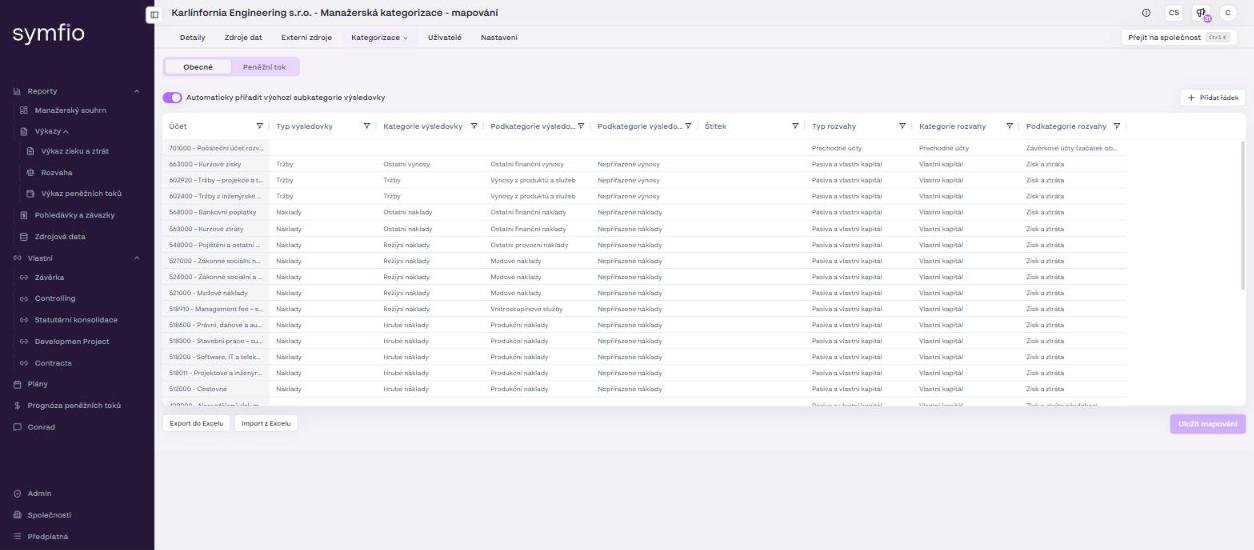
Cash flow mapping is done on the separate Cash flow (Peněžní tok) tab under Categorization › Mappings. Cash flows are categorised by contra account: the system first identifies a movement on a cash account and then classifies it according to the contra account.
- Open the Categorization tab and choose Mappings.
- Switch to the Cash flow tab.
- Find the required contra account in the table.
- Check or select the appropriate category in the
CF categorycolumn (operating, investing or financing cash flow). - Select the appropriate subcategory in the
CF subcategorycolumn. - Check the value in the
Tagcolumn if needed. - Save your changes with Save mappings.
| Column | Meaning |
|---|---|
Contra account |
The contra account by which the cash movement is categorised |
CF category |
System cash flow category (operating / investing / financing) |
CF subcategory |
Detailed cash flow subcategory, for example Suppliers, Customers, Employees, Taxes, VAT, Advance payments |
Tag |
Additional label used during data processing |
Example: If a movement is posted on an account tagged Cash and its contra account is a supplier account, Symfio places it in the category Operating cash flow and the subcategory Suppliers – that is, the category and subcategory set for that contra account.
Important: An unassigned or unknown value in the CF category or CF subcategory column means that the contra account is not mapped correctly yet. Fill in the appropriate category and subcategory and save your changes.
Tip: For a large chart of accounts use Export to Excel and Import from Excel. Edit the contra account mapping in bulk in a spreadsheet and upload it back.
4. Check the resulting Cash flow statement
Once the tags, subcategories and mapping are done, open the report and verify the result.
- Open Reports › Statements › Cash flow statement in the left menu.
- Click Show in the Saved reports and filters bar and select the saved report Category.
- Select the company and the period you want to display and confirm with Apply.
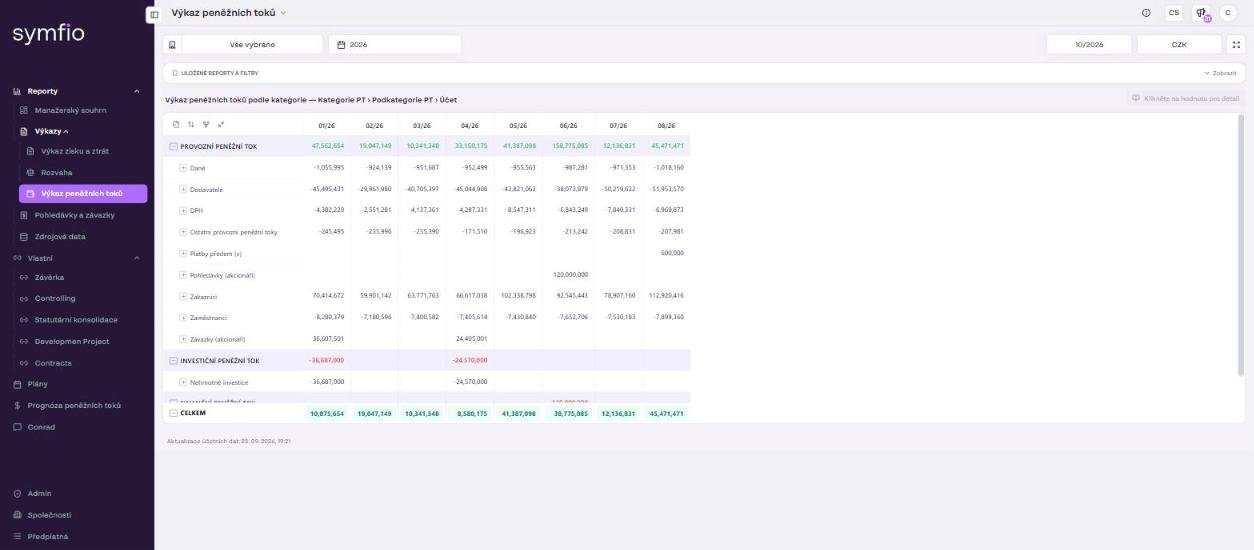
- Check the row hierarchy in the view title: Cash flow statement by category — CF category › CF subcategory › Account.
- Expand the individual rows with the + icon and verify the detailed classification of the movements. Click a value to open the accounting entries behind it.
- Return to Categorization › Mappings › Cash flow and adjust the mapping of the relevant contra account if a movement is classified incorrectly.
- Check in Categorization › Lists › Chart of accounts that the account is tagged
Cashif a movement is missing from the report.
A correctly configured statement shows the main blocks OPERATING CASH FLOW (for example Taxes, Suppliers, VAT, Other operating cash flows, Advance payments, Customers, Employees), INVESTING CASH FLOW (for example Intangible investments), FINANCING CASH FLOW and a TOTAL row. If the report shows a row with an unassigned category, some movements do not yet have the correct category or subcategory in the mapping.
Tip: After the initial setup, check at least one closed period. Expand the main categories and compare selected items with the accounting movements (via drill-down or in Source data › Journal). This is an easy way to confirm that movements are classified correctly. The TOTAL row should match the change in the balance of the cash accounts over the period.
Result of the setup
When all steps are complete, the Cash flow statement in the Category view shows cash movements by cash flow category and subcategory. Only accounts tagged Cash enter the report, and each movement is categorised by its contra account. You then reuse the same breakdown (CF category, CF subcategory) in Cash flow forecasts.
Frequently asked questions
Why is the statement empty or showing only some movements?
Most often a cash account is missing the Cash tag. Check the Tag column under Categorization › Lists › Chart of accounts and remember to click Save data.
How does a transfer between two bank accounts appear in the statement?
Both accounts are tagged Cash, so the movement nets to zero (out of one account, into the other). If you still see an unassigned movement, check the contra account mapping on the Cash flow tab.
Can I add my own main cash flow category?
No. The CF categories (operating, investing, financing) are defined by the system. Use custom CF subcategories for your own breakdown.
Does the setup apply to all companies?
No, tags, subcategories and mappings are set per company. For a consolidated statement use the same subcategory names across all companies.