Before you start
- Permissions: external sources are managed by a user with the Administrator role. For the spreadsheet itself you need sharing rights in Google Sheets.
- Time required: 5 minutes.
- What to prepare: a Google Sheets spreadsheet with the plan in the structure agreed with Symfio (support or Customer Success will provide the template) and its URL.
What external plan sources are for
- A plan or budget you prepare in Google Sheets appears in the Source data report on the Financial plan or Custom plan tabs.
- The planned values are available in the reports for comparison with actuals.
- You keep editing the spreadsheet in Google Sheets – Symfio loads the current content, so there is nothing to export.
Note: An external plan source is different from the income statement Plans that you create and edit directly in Symfio. Use an external source when the plan already exists outside Symfio and you only want to display and compare it.
Step 1: Share the spreadsheet with the Symfio service account
Symfio reads the spreadsheet under the account pbi@proefo.com. Without access for this account the connection fails.
- Open the spreadsheet in Google Sheets.
- Click Share in the top right corner.
- In the field for adding people, enter
pbi@proefo.com. - Set the role to Viewer – edit rights are not needed.
- Confirm with Send (you can turn off the e-mail notification).
- Copy the spreadsheet URL from the browser address bar (it starts with
https://docs.google.com/spreadsheets/d/…).
Step 2: Add the plan source in Symfio
- Open Companies, select a company and click the External sources tab. If you have no source yet, you will see the text “No plan sources found – Add a plan source to start planning.”
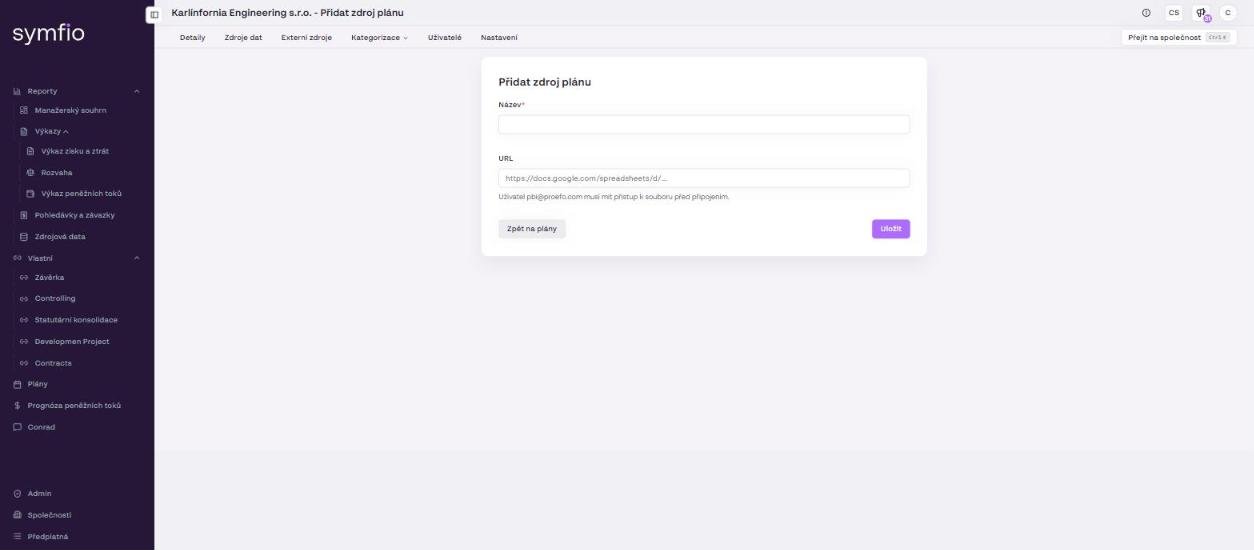
- Click + Add plan source.
- In the
Namefield, enter a descriptive name, e.g. “Budget 2026”. - In the
URLfield, paste the copied Google Sheets address. - Check the note below the form: “The user pbi@proefo.com must have access to the file before connecting.” – if you have not shared the spreadsheet yet, do it now.
- Click Save. The source appears in the list of the company’s external sources.
After finishing
Check the loaded data in the Source data report on the Financial plan or Custom plan tab. If no data appears, verify the sharing of the spreadsheet and the sheet structure against the template.
Tips and common mistakes
Most common mistake: the spreadsheet is not shared with pbi@proefo.com, or it is shared only with “anyone with the link” within your Google Workspace organization. Add the account explicitly by name.
Tip: Do not rename or move the sheets Symfio works with and do not change the column headers. Change only the values. If you need to adjust the structure, agree it with support first.
Note: Connect one Google Sheet to one company. For several companies use separate spreadsheets or sheets as recommended by support.
Frequently asked questions
Can I connect an Excel file on SharePoint or OneDrive instead of Google Sheets?
The form accepts a Google Sheets URL. For other sources, consult support at support@symfio.app.
How quickly does a change in the spreadsheet show up?
Symfio loads external sources together with the accounting data refresh. The time of the last refresh is shown in the report footer (“Accounting data update”).
What data should I put into the spreadsheet?
Planned values by month in the template structure (e.g. income statement category, cost centre, month, amount). Support will provide the specific template during onboarding.