Before you start
- Permissions: data sources are managed by a user with the Administrator role (the View data sources permission must be enabled for the company).
- Time required: 5 minutes to read; connecting one source takes 5–15 minutes depending on the connector type.
- What to prepare: access credentials for your accounting system, or an Excel file based on the template – see the comparison table below.
The Data sources tab
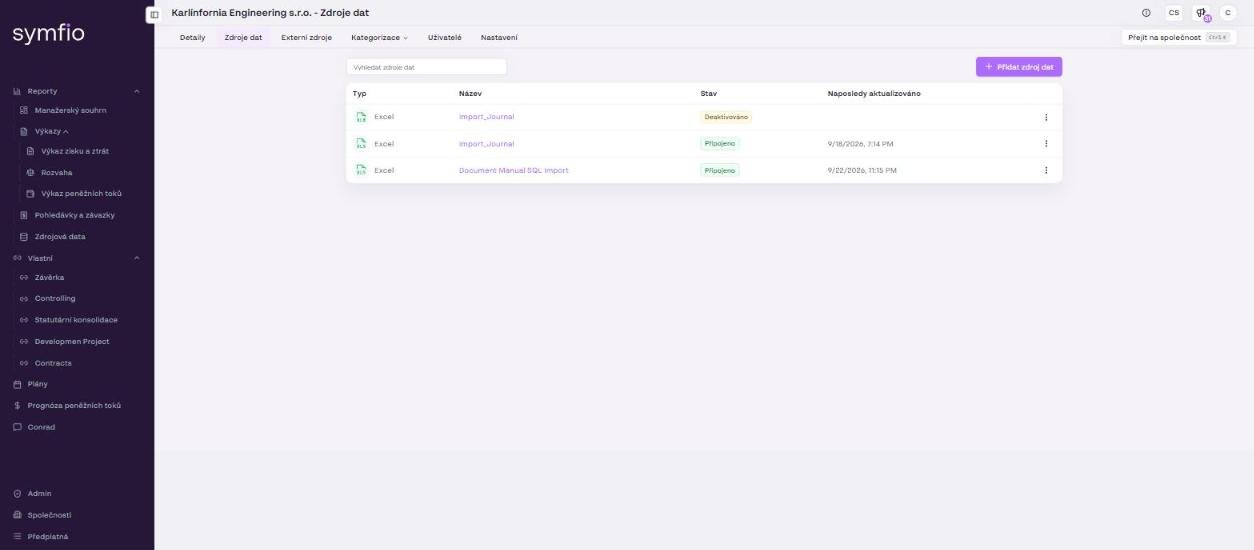
A data source always belongs to a specific company. Open the Companies menu, select a company and click the Data sources tab. Above the table you will find the Search data sources field and the + Add data source button.
| Column | Meaning |
|---|---|
Type |
Icon and name of the connector (e.g. Excel, Pohoda SQL, ABRA Flexi API). |
Name |
Your own name of the source entered in the wizard. |
Status |
Connected (green label) – the source is active and its data feeds the reports. Deactivated (yellow label) – the source is switched off and its data is not included in reports. |
Last updated |
Date and time of the last successful data load from this source. |
⋮ |
Row action menu – this is where you deactivate a source, or activate it again. |
Available connectors
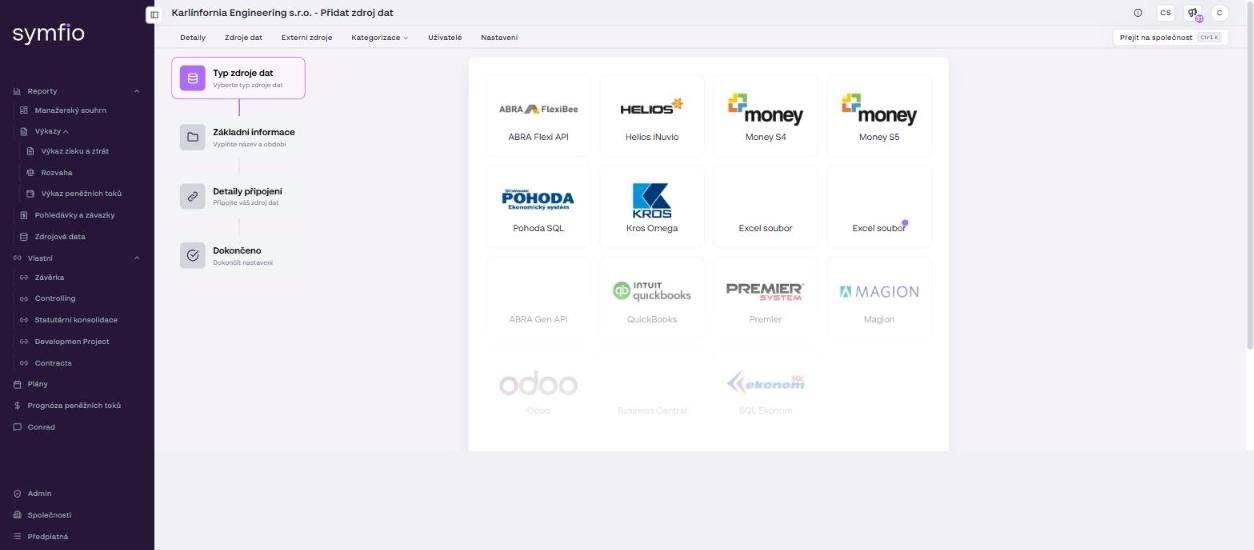
After clicking + Add data source you choose the source type. Connectors differ in how they connect and in what you need to prepare.
| Connector | Connection type | What you need |
|---|---|---|
| ABRA Flexi API | API | The API company identifier, the server address (Custom attribute), and the username and password of a user with API access. |
| Helios iNuvio | SQL | SQL server address, database name, username and password (read-only recommended). If the server is not reachable from the internet, an integration runtime as well. |
| Money S4 | SQL | Same as Helios iNuvio. |
| Money S5 | SQL | Same as Helios iNuvio. |
| Pohoda SQL | SQL | Same as Helios iNuvio. Applies to Pohoda editions with a database on SQL Server. |
| Kros Omega | SQL | Same as Helios iNuvio. |
| Excel file | File | An Excel file based on the Symfio template with the sheets Accounting journal, Chart of accounts, Cost centres, Projects and Activities. |
Upcoming connectors (greyed out in the wizard, not yet selectable): ABRA Gen API, QuickBooks, Premier, Magion, Odoo, Business Central and SQL Ekonom. Below the list of types you will find the note “Can’t find your data source? No problem! Contact our support team to request new data sources.” If you use a different system, write to support@symfio.app and load your data from Excel until the connector is available.
The Add data source wizard
All connectors use the same four-step wizard. Only the content of step 3 differs.
- Open Companies, select a company and go to the Data sources tab.
- Click + Add data source.
- In the Data source type step (“Select data source type”), click the connector you need.
- In the Basic information step (“Fill in the name and period”), enter the
Data source name,Period fromandPeriod to(month and year) and click Continue. - In the Connection details step (“Connect your data source”), fill in the credentials or upload the file, depending on the connector type.
- In the Done step (“Finish setup”), click Finish. The new source appears in the table with the status Connected.
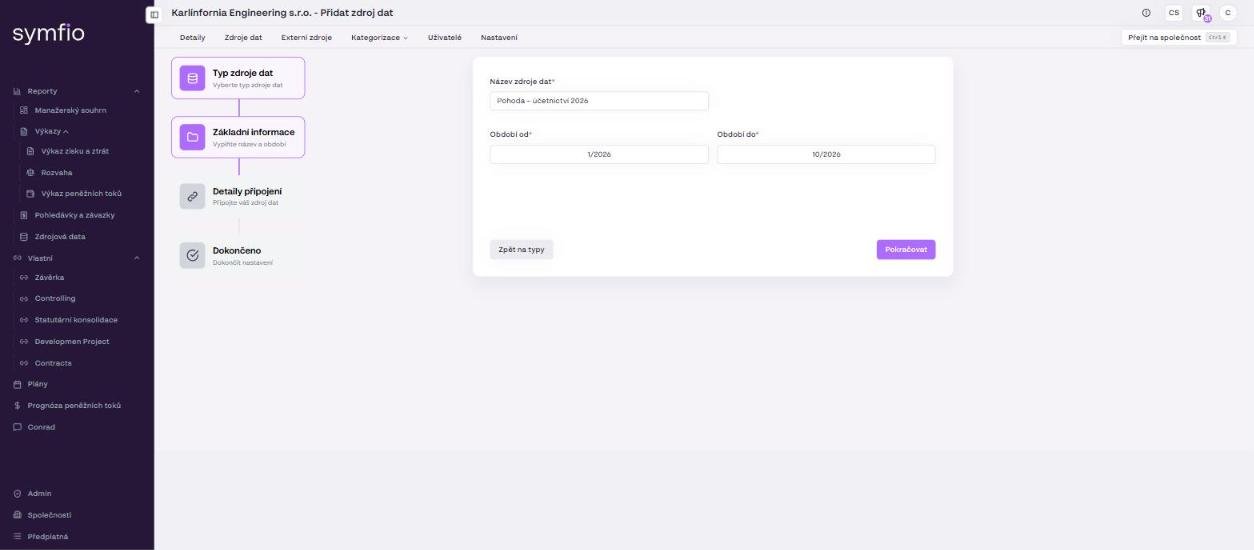
You can go back one step at any time with the Back to types and Back to details buttons.
What the period from–to means
Period from is the first month whose accounting entries are loaded from the source. Period to is the last month loaded. All months within this range are loaded, including both end months. Entries outside the range are ignored by Symfio even if they exist in the accounting system.
- If you want year-over-year comparisons in reports, set
Period fromto the first month that should be visible in the reports. - For a continuously connected accounting system, set
Period tofar enough ahead (for example the end of the current fiscal year) so that newly posted months are loaded as well. - For a one-off Excel import, set the range exactly to the months contained in the file.
How data refreshes work
Connected sources (API and SQL connectors) refresh automatically – Symfio regularly pulls new and changed accounting entries, there is nothing to run manually. You can see the time of the last refresh in two places:
- in the Last updated column of the data sources table – separately for each source,
- in the footer of every report as “Accounting data update: 23. 09. 2026, 19:21” (Aktualizace účetních dat) – the time the numbers you are looking at are valid for.
After the first connection, data usually appears in the reports within 60 minutes. An Excel file source does not refresh by itself – you upload new or corrected data as a new source.
Tips and common mistakes
Beware of doubled data: When you upload a new Excel covering the same period (for example a corrected version), deactivate the old source via the ⋮ menu. Two active sources with the same months are added together – revenue and costs double, foreign currency conversions look wrong and the intercompany balance does not net to zero.
Tip: Give sources descriptive names, for example Pohoda 2024–2026 or Excel – correction 03/2026. You will then immediately see in the table which source to deactivate.
Note: A deactivated source can be activated again later. Before connecting another source, check that its period does not overlap with an already active source.
Frequently asked questions
Can one company have several data sources?
Yes. A typical example is a connector to the accounting system for the current years plus an Excel file with history. Make sure the periods of the active sources do not overlap.
Why does the report show an older update time than I expect?
The report footer shows the time of the last processing of accounting data. If it is much older than usual, check the source status in the Data sources tab – the source may be deactivated or the credentials may have expired.
Can a user with the Editor or Reader role add a data source?
Managing data sources is intended for administrators. A user only sees the Data sources tab if the “View data sources” permission is enabled for them on the company.
How do I verify that the data loaded correctly?
Open the Source data report and check the number of journal entries, the chart of accounts and the cost centres for the loaded period. See the article on checking loaded data.