Before you start
- Permissions: the data source is created by a user with the Administrator role. On the accounting system side you need the cooperation of the database administrator or IT.
- Time required: 10–15 minutes in Symfio; preparing the database user and network access depends on your IT (usually within a day).
- What to prepare: the values in the table below and a decision on whether the SQL server is reachable from the internet.
| Field | What to enter |
|---|---|
Server |
Name or IP address of the SQL server, including the instance (e.g. sql.company.comSQLEXPRESS) or port if applicable. |
Database name |
Name of the accounting unit’s database on this server. Get it from the system administrator or from the SQL server management tool. |
Username |
Database user created for Symfio – read-only rights recommended. |
Password |
Password of that user. |
Integration runtime ID |
Fill in only if your server is not reachable from the internet (see below). Otherwise leave empty. |
Preparation on the IT side
Before connecting, hand these requirements to your database administrator:
- Read-only user. Create a dedicated login for Symfio on the SQL server with read rights (e.g. the
db_datareaderrole) on the accounting unit’s database. Symfio does not write anything to the database. - Network access. If the server is reachable from the internet, allow access on the firewall only from Symfio IP addresses – support will provide the list at support@symfio.app. Use an encrypted connection.
- Server on an internal network. If the server is not reachable from the internet (typical for Pohoda or Money on a company server), use an integration runtime – a small service installed on a machine in your network with access to the SQL server, which securely passes the data to Symfio. Coordinate the installation and registration with Symfio support.
- Test. Verify that you can connect to the database with the given username and password (e.g. from the machine where the integration runtime will run).
Tip: Set the database user’s password without expiration, or note the expiration date. An expired password is the most common reason why data stops refreshing.
Creating the data source
- Open Companies, select a company and click the Data sources tab.
- Click + Add data source.
- In the Data source type step, select your system: Pohoda SQL, Helios iNuvio, Money S4, Money S5 or Kros Omega.
- In the Basic information step, enter the
Data source name(e.g. “Pohoda – main ledger”),Period from(first month to load) andPeriod to(last month to load – set it far enough ahead). Click Continue. - In the Connection details step, fill in
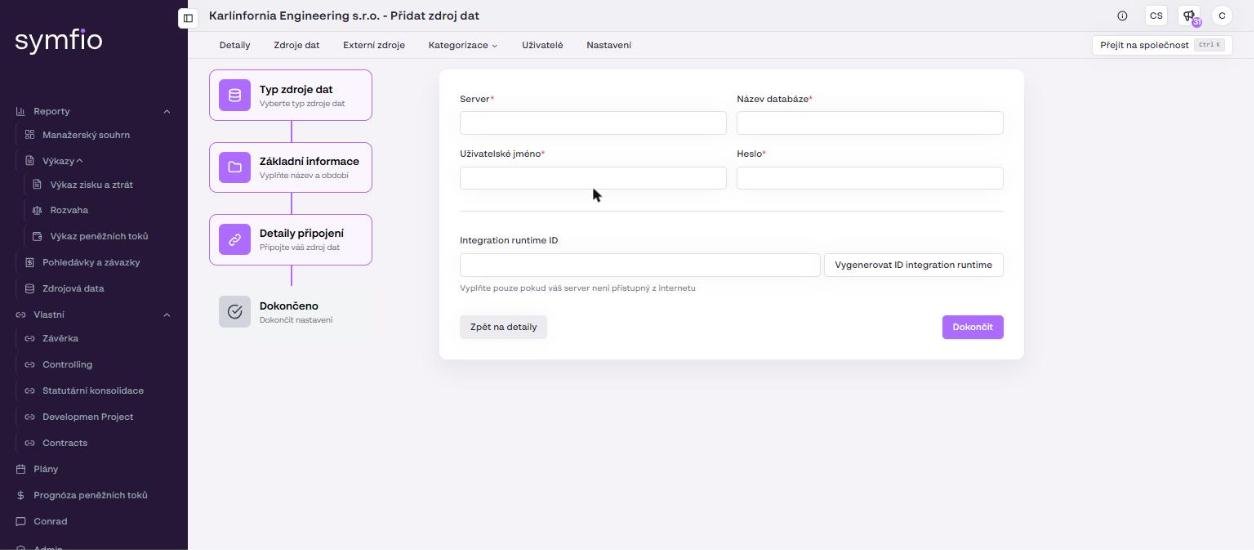
Server,Database name,UsernameandPassword. - If the server is reachable from the internet, leave the
Integration runtime IDfield empty and continue with step 8. - If the server is not reachable from the internet, click Generate integration runtime ID (Vygenerovat ID integration runtime). Copy the generated ID and send it to Symfio support – it is used to pair the integration runtime in your network with this data source.
- Click Continue and then Finish in the Done step.
After finishing
The source appears in the table with the status Connected. For a server reachable from the internet, data is usually loaded within 60 minutes. With an integration runtime, the first load starts after the agent is installed and registered in your network – support will let you know once the connection is active. Watch the time of the last load in the Last updated column and in the report footer.
After the first load, compare the number of journal entries in the Source data report with your accounting system and assign new accounts in Categorization › Mappings.
Tips and common mistakes
| Problem | Solution |
|---|---|
| No data loaded | Verify the server name including instance or port, the database name and the credentials. Check that the firewall allows access from Symfio addresses, or that the integration runtime is running. |
| Some entries are missing | Check Period from / Period to. Entries outside the range are not loaded. |
| Data stopped refreshing | Most often the database user’s password expired, the server address changed or the machine running the integration runtime was switched off. |
| Several databases (e.g. one per year) | Some systems keep a separate database for each accounting period. Agree on the approach for your system with support before creating the source. |
Warning: If the company has another active source for the same period (e.g. an older Excel), deactivate it via the ⋮ menu, otherwise the data will be counted twice in the reports.
Security: Symfio only needs read access to the database. Never share the administrator account (e.g. sa) – always use a dedicated user with limited rights.
Frequently asked questions
What exactly is the integration runtime and where does it run?
It is a small service installed on a computer or server in your network that has access to the SQL server. It connects outbound to Symfio, so you do not need to open inbound ports on the firewall. The machine must stay switched on for refreshes to run.
Can Symfio change data in the accounting system?
No. The connector only reads data, which is why we recommend a user with read rights only.
We run Pohoda without SQL Server (the edition with its own database). Can it be connected?
The Pohoda SQL connector requires a database on SQL Server (Pohoda SQL and E1 editions). For other editions use the Excel import or consult support.
How often is the data loaded?
Automatically and regularly. The exact time of the last refresh is shown in the Last updated column and in the footer of every report.