Important: Only items with a PL Type are loaded into the Income statement. For an item to appear in the right part of the income statement, it must also have the matching PL category and PL subcategory assigned.
Before you start
- Permissions: the Administrator role for the given company (permission View management data mappings).
- Time required: 30–90 minutes, depending on the size of the chart of accounts.
- What to prepare: a connected data source (accounts are loaded into the table from Lists), your custom subcategories ready (Managing categories) and the company’s basic configuration checked.
Opening the Mappings page
- In the left menu click Companies and select the company you want to edit.
- In the company detail open the Categorization tab.
- From the drop-down choose Mappings. A table with accounts and their current mapping opens.
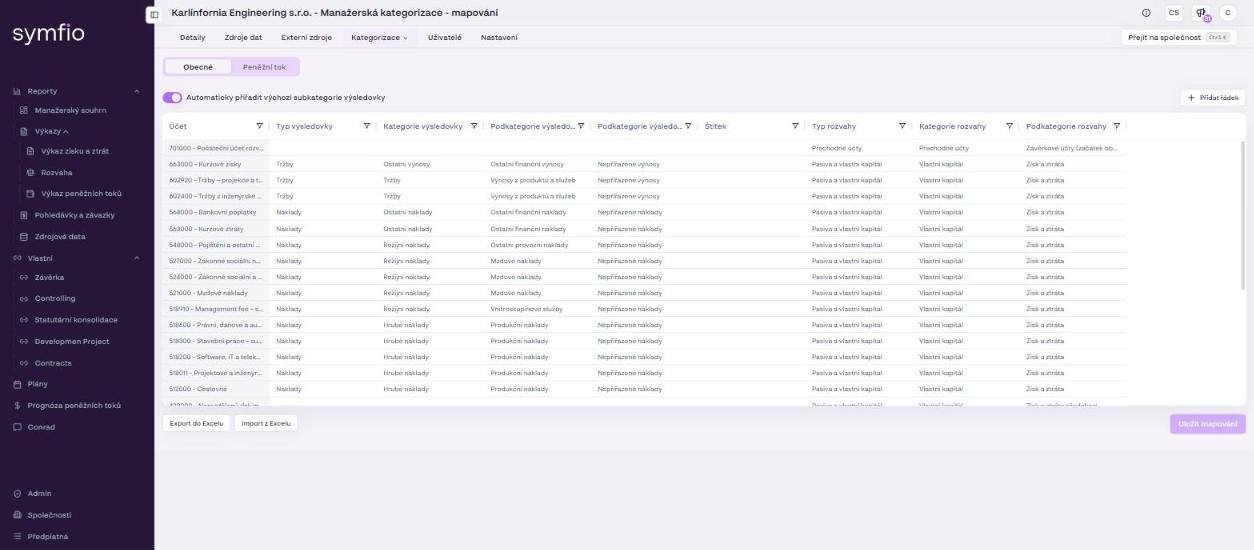
Working with the mapping table
When the page opens, the General tab (Obecné) is active. It contains the mapping used for the income statement, balance sheet and other general financial views. The Cashflow tab (Peněžní tok) is for the separate cash flow mapping. Open a cell’s value by double-clicking and choose from the drop-down.
| Column | Meaning |
|---|---|
Account |
The account you are mapping. If categorization by centre, contract or activity is enabled in Settings, the same account number may have several rows – one per combination. |
PL Type |
Determines whether the item is Revenue or Expenses. Mandatory for income statement accounts. |
PL Category |
Main income statement category (Revenue, Cost of sales, Overheads, Other expenses, Other income). |
PL Subcategory |
More detailed breakdown within the PL category. |
PL Subcategory 2 |
Second level of detail, if you use it. |
Label |
Supplementary identifier for correct placement of the item in reports. |
BS Type |
Assets, Liabilities and equity or Transitory accounts. Mandatory for balance sheet accounts. |
BS Category / BS Subcategory |
Main and detailed balance sheet breakdown (e.g. Equity › Profit and loss, Current liabilities › VAT, Cash › Cash at bank). |
Example: The account “Foreign exchange gains” may have PL Type Revenue, PL Category Other income, PL Subcategory Other financial revenue and PL Subcategory 2 Unassigned revenue. If the account is used in several cost centres, you can set the mapping separately for each account and centre combination.
Setting up a mapping
- Find the account you want to include in the income statement in the table. If the account and centre combination is missing, add it with the + Add row button in the top left.
- If the account is used for several cost centres, make sure you are editing the right row.
- Double-click the
PL Typecell and choose Revenue or Expenses. - In the
PL Categorycolumn choose the main category. - In the
PL Subcategorycolumn choose the matching subcategory. - If you use the second level of breakdown, set
PL Subcategory 2as well. - For balance sheet accounts fill in
BS Type,BS CategoryandBS Subcategorythe same way. - When finished, click Save mappings in the bottom right.
Tip: Map from general to detailed: first PL Type, then PL Category, then PL Subcategory and finally PL Subcategory 2.
Automatic assignment of subcategories
Above the table is the toggle Automatically assign default PL subcategories (Automaticky přiřadit výchozí subkategorie výsledovky). When switched on, Symfio automatically assigns default PL subcategories based on account numbers (using the account classes set in the Revenue account category and Expenses account category fields).
Recommendation: Use automatic assignment as a starting point. Before saving, however, always check that the automatically assigned subcategories match the income statement breakdown you need. Automatic assignment works only for default subcategories and for custom subcategories you have not edited after creating them.
Checking warnings
Symfio shows a warning above the table if the mapping is incomplete or if identical combinations have different classifications.
An item has a PL Type but is missing categorization
The warning “Some rows have a PL type but are missing a PL category.” means that some rows have a PL Type set but no PL category or one of the required subcategories.
- Find the rows with a missing category or subcategory.
- Fill in the
PL Categoryand the matchingPL Subcategory. - Save the changes with Save mappings.
Important: Incomplete mapping may cause an item to appear in the wrong place in the income statement (e.g. in the Unassigned expenses row), or not to be classified correctly in the report structure at all.
The same combination has different categories
The warning “Some rows have different categories for the same combination” means that the same account and centre combination is mapped differently.
- Find the rows with the same account and centre.
- Check their
PL Type,PL Categoryand both subcategory levels. - Unify the mapping if the items should belong to the same part of the income statement.
- Save the changes.
Tip: If the differing mapping is not intentional, unify it before building the report. This prevents the same data from being classified differently in the income statement.
Bulk editing of mappings
Next to the Save mappings button you find Export to Excel and Import from Excel. Use them for bulk checks or edits of a larger number of rows.
- Click Export to Excel and save the file with the current mapping.
- Edit the values in Excel – keep the column structure and category names exactly as they are in the application.
- Click Import from Excel, select the edited file and check the loaded values in the table.
- Confirm with Save mappings.
Recommendation: Before a bulk import, always export the current mapping to Excel first. That gives you a backup of the current setup.
Cashflow tab
On the Cashflow tab you map the dimensions of the Cash flow statement, which Symfio builds using the direct method. Each row corresponds to one counter-account from the chart of accounts.
- Switch to the Cashflow tab.
- In the
CF Categorycolumn double-click and choose Operating cash flow, Investing cash flow or Financing cash flow. - In the
CF Subcategorycolumn choose the more detailed breakdown – for example Customers, Suppliers, Employees, VAT, Taxes or Prepayments. - If needed, add a
Labelthe same way as on the General tab. - Click Save mappings.
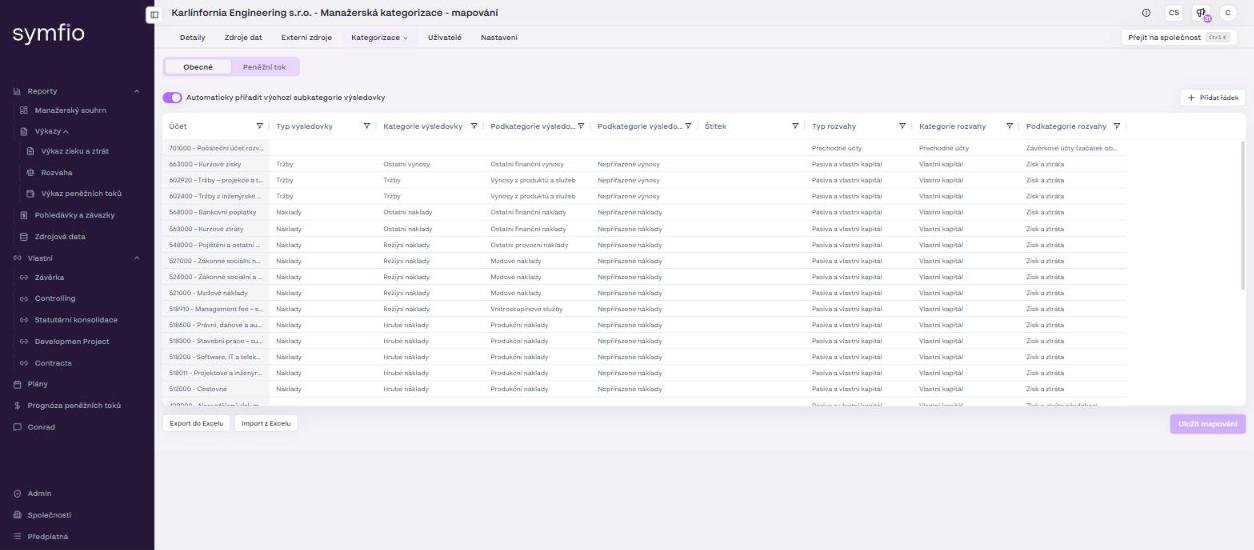
Frequently asked questions
When does a mapping change show up in reports?
Within about 1 hour of saving. The time of the last update is shown in the footer of every report (“Accounting data update”).
What should I set for accounts that do not belong in the income statement?
Choose Empty for the relevant dimension, or Unassigned expenses / Unassigned revenue if you want the amount to appear in the summary row of unassigned items.
Why has a new account from accounting not appeared in the table?
Accounts are loaded from Lists after the data source is refreshed. Check the Data sources tab (status Connected) and the time of the last update; you can also add the account manually with + Add row.