Before you start
- Permissions: to view the report, the View income statement permission is enough (Reader, Editor or Administrator role); to fix the mapping you need the Administrator role.
- Time required: 15–30 minutes.
- What to prepare: the income statement from your accounting for one closed period, against which you will compare the totals. Keep in mind that mapping changes appear in the report within about 1 hour of saving.
What is loaded into the report
The income statement loads items that:
- have a
PL Typeset, - have the matching
PL Categoryassigned, - have a
PL Subcategoryset, - have a valid, saved mapping.
If you use the second level of breakdown, items in the income statement are further split by PL Subcategory 2. Accounts with a PL type but no category appear in the Unassigned expenses row.
Important: Creating a category alone is not enough. For an item to appear in the correct row of the income statement, it must also be mapped to that category.
Recommended check procedure
- In the left menu open Reports › Statements › Income statement.
- Use the company selector to pick the company you are checking and confirm with Apply.
- Use the period selector to choose the period (e.g. Last year or specific years) and the granularity Month, Quarter, Tertial or Fiscal year; optionally switch on Show annual totals. Confirm with Apply.
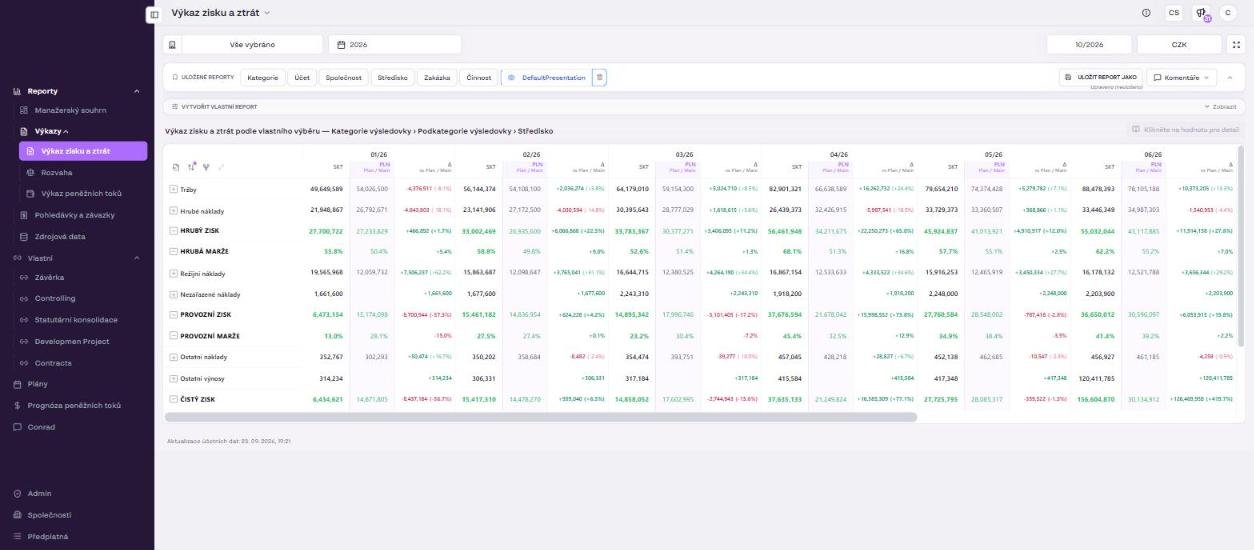
- In the SAVED REPORTS AND FILTERS bar click Show and select the saved report Category. The rows are grouped in the hierarchy PL Category › PL Subcategory.
- Check that revenue appears in the Revenue row and in the matching revenue subcategories.
- Check that costs appear in the Cost of sales, Overheads and Other expenses rows and in the matching cost subcategories.
- Expand individual rows with the + button (or the Expand to next hierarchy level icon) and verify the assigned PL subcategories.
- Compare the NET PROFIT and TOTAL COSTS totals for the closed period with your accounting. For a suspicious value use Click a value for detail – the accounting entries that make up the value are shown, including the account number.
- If an item is missing or sits in the wrong row, go back to the company detail, Categorization › Mappings, and adjust its mapping.
- After the change click Save mappings, wait for the recalculation and check the report again.
Tips and common mistakes
Tip: To check a specific account, switch to the saved report Account – you will see which income statement rows each account feeds into. You can also ask Conrad the same question, for example “show me how account 518900 is classified”.
Note: A non-zero Unassigned expenses row is a signal that some accounts have a PL type but lack a category or subcategory. Review the warnings above the mapping table.
Warning: If the totals do not reconcile to accounting, first check that there are not two active sources with the same data on the Data sources tab (after a repeated Excel import, deactivate the old source) and that no accounts are missing a PL Type.
Frequently asked questions
I changed the mapping but the report looks the same. Why?
Changes are reflected within about 1 hour. Check the time in the report footer (“Accounting data update”) and make sure you saved the mapping with Save mappings.
How do I find out which accounts make up a specific row?
Click a value in the table (the Click a value for detail function) or switch to the saved report Account.
Can I save my check view?
Yes. Set the period, granularity and row hierarchy and use SAVE REPORT AS in the Saved reports and filters bar. Next time you can open the view with one click.