Before building the structure of your income statement, check the company’s basic configuration on the Settings tab. Some values here determine what Symfio uses to categorize accounting data and how the data then appears in financial reports.
Before you start
- Permissions: the Administrator role for the given company (permission View settings).
- Time required: about 10 minutes.
- What to prepare: which account classes your accounting uses for revenue and expenses, and whether you want to break the income statement down by accounts only or also by cost centres, contracts or activities.
Opening the company settings
- In the left menu click Companies and select the company you want to edit.
- In the top bar of the company detail open the Settings tab.
- Review the form with the company’s basic settings.
- Fill in or check all fields marked with an asterisk
*– they are required. - Click Save settings.
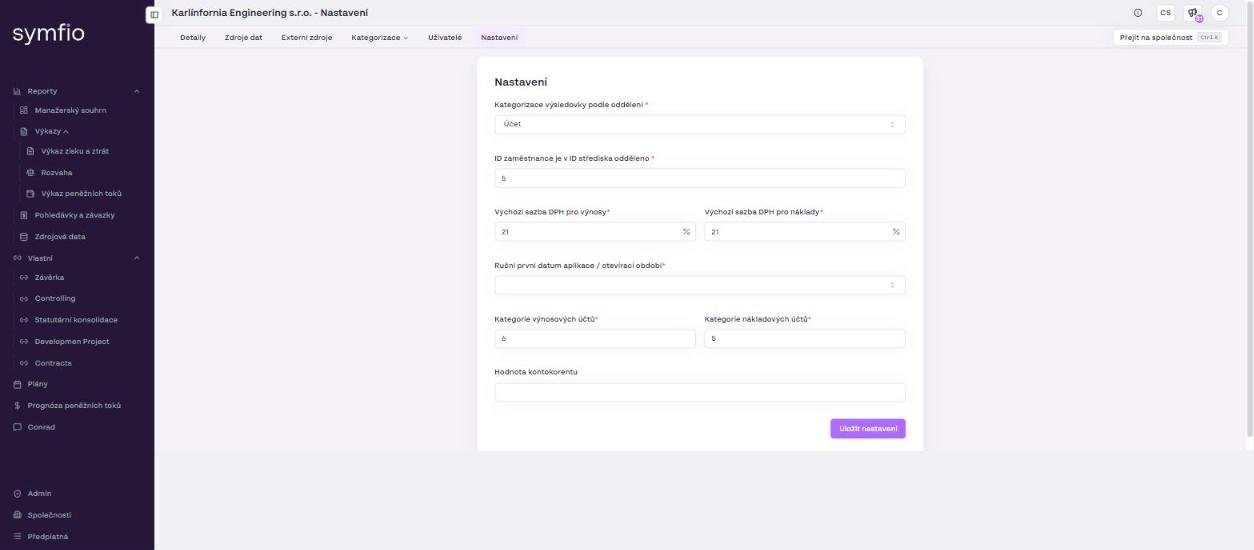
Important: If a required field is empty, the settings may not save. Before continuing, make sure no required field is left blank.
Settings that matter for the income statement
These fields are the key ones for building the income statement:
| Field | What to set |
|---|---|
| PL categorization based on departments (Kategorizace výsledovky podle oddělení) | Determines which data the income statement categorization is based on. Account is mandatory; optionally you can add Centre, Contract or Activity. If you add another dimension, the same account may have several rows in Mappings (one per combination). |
| Revenue account category (Kategorie výnosových účtů) | The account class Symfio treats as revenue accounts – in the Czech chart of accounts typically 6. |
| Expenses account category (Kategorie nákladových účtů) | The account class Symfio treats as expense accounts – in the Czech chart of accounts typically 5. |
Tip: Set the Revenue account category and Expenses account category according to the structure of the chart of accounts used in your company. Before changing them, confirm the setting with the person responsible for accounting data or reporting. Symfio also uses these classes to pre-fill the PL Type (Revenue / Expenses) during automatic assignment in Mappings.
Other required settings
The tab contains further parameters that relate to the income statement indirectly:
- Employee ID is separated in the centre ID – the position (number of characters) at which the employee identifier is separated within the cost centre identifier, for example
5. - Default VAT rate for revenue (%) and Default VAT rate for expenses (%) – the default VAT rates applicable to your company.
- Manual first application date / opening period – the first period from which data is processed in the application.
- Overdraft value – optional amount of the company’s overdraft facility.
Important: Set these values according to your company’s accounting and organizational rules. If you are unsure about the meaning of a field, do not change it without consulting your Symfio administrator or the implementation team.
Default set of PL subcategories
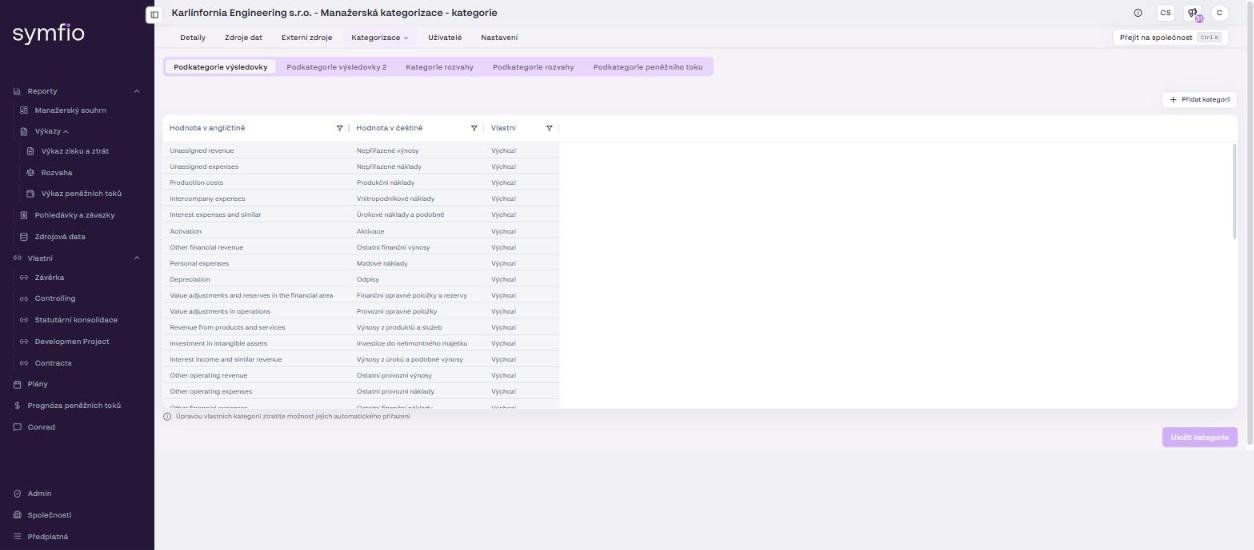
When creating a company (+ Add company), the PL subcategorization field offers Default or Custom. Default creates a set of recommended Symfio income statement subcategories (e.g. Revenue from products and services, Production costs, Personnel costs, Depreciation) you can start mapping to right away. You can add custom subcategories at any time later under Categorization › Categories.
Frequently asked questions
What happens when I change the Revenue or Expenses account category?
Symfio uses these classes to recognise revenue and expense accounts during automatic assignment. After a change, check Mappings and the Income statement report – the change takes effect within about 1 hour.
When does it make sense to categorize the income statement by cost centres too?
When the same account is used for different types of cost depending on the cost centre (for example account 518 for both IT and marketing). In Mappings you then set the classification separately for each account and centre combination.
The settings will not save. What should I do?
Most often a required field marked with an asterisk is empty. Go through the form from top to bottom and complete the blank fields.