Before you start
- Permissions: only a user with the Administrator role for all companies involved can perform the setup.
- Time required: depends on the number of companies in the group and the number of intercompany accounts, typically 1–3 hours.
- Have ready:
- all group companies registered in Symfio (see Adding a company),
- an overview of the group’s ownership structure (which company is the parent of which),
- a list of the accounts used for intercompany transactions (loans, services, balances, capital).
1. Set up the company hierarchy
The first step is to define the relationships between companies according to the actual ownership structure of your group. The relationship is defined by the Parent entity (Rodičovská entita) field on each subsidiary.
- Click Companies in the left menu.
- Select the company you want to place in the hierarchy (the subsidiary).
- Click Edit company on the Details tab.
- Select the parent company from the Parent entity drop-down (for example Karlínfornia Republic a.s. as the holding company).
- Save your changes with Edit company.
- Repeat for every subsidiary in the group.
Tip: The top-level parent company stays without a parent entity. You can also fill in the parent entity when you first create a company in the Add company form.
Note: The hierarchy affects all settings, output reports and dashboards. Record it and update it in Symfio promptly whenever the group changes (new acquisition, sale, merger), or add newly affiliated entities.
Check the hierarchy in the company selector
You can check the structure in any report under Reports.
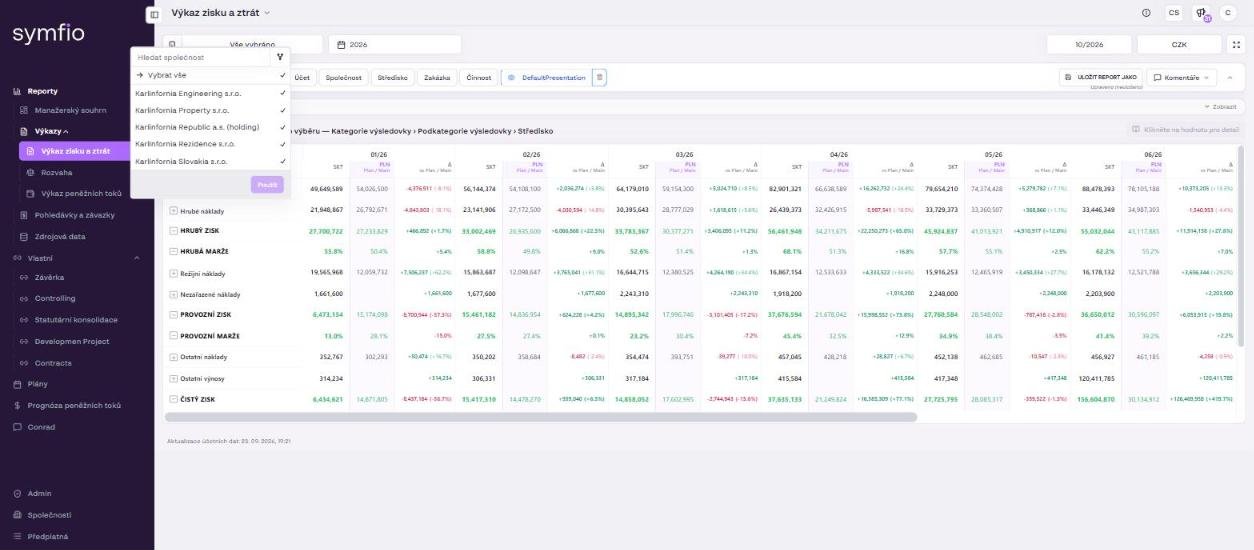
- Open, for example, Reports › Statements › Balance sheet.
- Click the company selector button in the toolbar (building icon, text “All selected”).
- Check the list of group companies. Tick individual companies or choose Select all to define which companies the report is built for.
- Confirm with Apply.
2. Set up intercompany parameters
After setting up the hierarchy, define which accounts are used for intercompany transactions and how they should be eliminated in consolidation. The setup is done in the chart of accounts of each company.
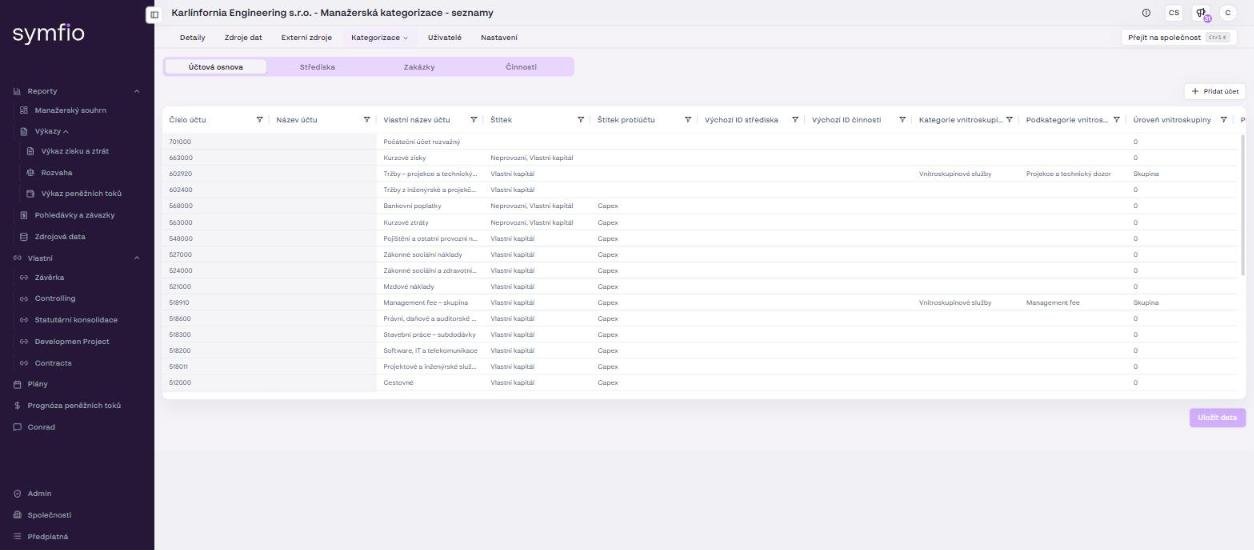
- Click Companies in the left menu and select a company.
- Open the Categorization tab and choose Lists.
- Stay on the Chart of accounts tab.
- Scroll the table to the right using the scrollbar at the bottom of the screen to reach the intercompany columns.
- Select a value in the
Intercompany category(Kategorie vnitroskupiny) andIntercompany subcategory(Podkategorie vnitroskupiny) columns for each intercompany account. - Save your changes with Save data.
- Repeat for every company in the group.
Intercompany columns
| Column | Description |
|---|---|
Intercompany category |
Main category for classifying intercompany transactions, for example Intercompany services, Intercompany balance, Intercompany capital or Intercompany financing. Used for eliminations in consolidation. |
Intercompany subcategory |
A more detailed breakdown within the category. |
Intercompany level (Úroveň vnitroskupiny) |
Defines at which consolidation level the account is eliminated (see below). Shown for groups with a multi-level structure. |
Counterparty (Protistrana) |
The group company with which intercompany transactions take place through this account. |
Intercompany level
If your group has several levels (holding › subsidiaries › sub-subsidiaries), you define for each intercompany account at which level it should be eliminated. Double-click a cell in the Intercompany level column to open a menu with these options:
| Value | Meaning |
|---|---|
0 |
The account is not part of intercompany consolidation. |
Group |
The account belongs to the top level of the parent company – elimination at the level of the whole group. |
Subgroup |
The account belongs to the lower level of a subsidiary – elimination at subgroup level. |
Subgroup 2 to 4 |
Lower hierarchy levels (subsidiaries of subsidiaries) for more complex structures. |
Counterparty
Double-click a cell in the Counterparty column to open the list of all registered group companies. Select the company with which intercompany transactions typically take place through this account. Set the counterparties in the same way for every company you placed in the group hierarchy – the relationship must be filled in on both sides.
Filtering and saving
To make working with many accounts easier, use the filters in the column headers. Click the filter icon to display the options:
- Contains / Does not contain – text search,
- Equals / Does not equal – exact match,
- Starts with / Ends with – search by beginning or end,
- Blank / Not blank – filter empty values (ideal for checking which accounts are still missing a category).
Important: Click Save data after every change. Unsaved changes are lost when you leave the page.
3. Consolidated view in the statements
You get a consolidated view in all statements (Income statement, Balance sheet, Cash flow statement) as well as in the Executive summary and Receivables and payables simply by selecting several companies.
- Open the required report.
- Click the company selector button and tick the parent company and the subsidiaries you want to consolidate. Choose Select all to include the whole group.
- Confirm with Apply.
- Expand rows with the + icon. The saved report Company shows values broken down by individual company.
Note: A consolidated statement combines rows by category and subcategory name. Use the same set of categories (income statement, balance sheet and cash flow) across all companies in the group.
4. Check intercompany eliminations in the balance sheet
You verify that intercompany accounts are tagged correctly using a control view of the balance sheet. Intercompany receivables and payables, loans and capital holdings must cancel each other out within the group.
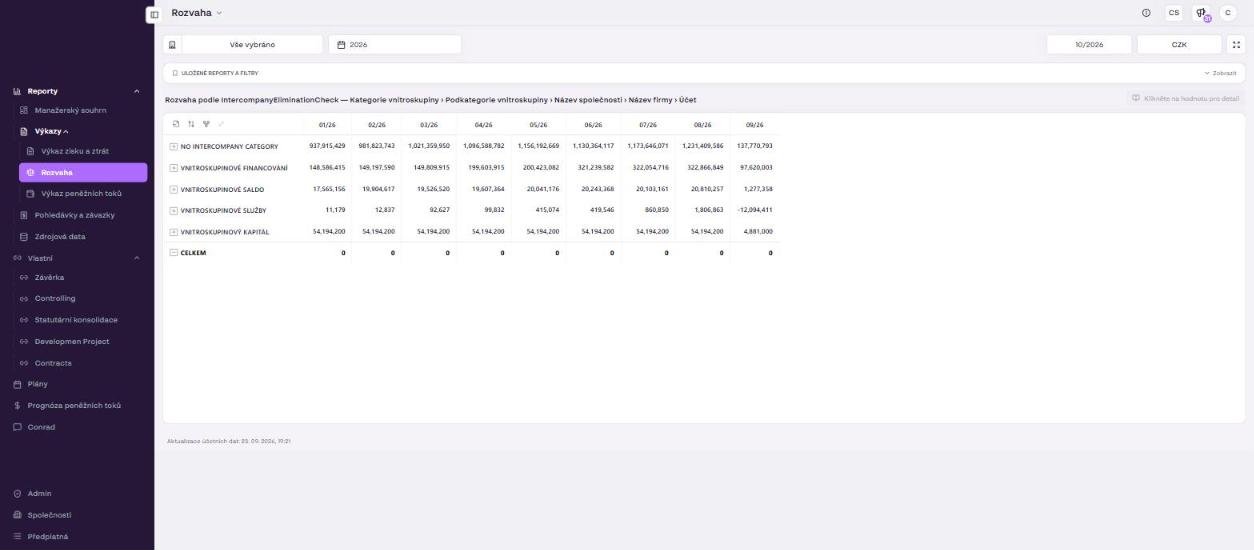
- Open Reports › Statements › Balance sheet.
- Select the whole group in the company selector (Select all) and confirm with Apply.
- Click Show in the Saved reports and filters bar and select the saved report IntercompanyEliminationCheck.
- Check the view title: Balance sheet by IntercompanyEliminationCheck — Intercompany category › Intercompany subcategory › Company name › Partner name › Account.
- Check the rows
INTERCOMPANY FINANCING,INTERCOMPANY BALANCE,INTERCOMPANY SERVICESandINTERCOMPANY CAPITAL. The TOTAL row must be 0 – then the eliminations balance. - Expand any category that is not zero down to company and account level, and click a value to open the accounting entries that make up the difference.
The NO INTERCOMPANY CATEGORY row contains all accounts without an intercompany category. It does not have to be zero – these are ordinary (non-intercompany) accounts.
Tip: The most common causes of a non-zero total: one side of the relationship does not have the account tagged with an intercompany category, an invoice is posted in only one company (timing difference), or there is an exchange rate difference on a foreign-currency entity (see below).
5. Foreign-currency entities and exchange rates
If a company in the group uses a different currency from the others (for example a subsidiary in EUR and the group in CZK), Symfio converts its data to the report currency using a fixed yearly exchange rate. You can see the rates used under Reports › Source data on the Exchange rates (Kurzy) tab. You switch the display currency of a report with the currency button (for example CZK) in the report toolbar.
Note: Because one rate is used for the whole year while each company’s accounting uses daily rates, a small exchange rate difference may remain in the control view for intercompany relationships involving a foreign-currency entity. This is not a mapping error.
Tips and common mistakes
Watch out for duplicate data sources: If you re-import a company’s data (for example a new Excel file), deactivate the old data source on the Data sources tab. Otherwise the entity’s data is counted twice and neither consolidation nor eliminations will balance.
Tip: Use Conrad (the AI controller) – a question such as “check the group’s intercompany balance as of 09/2026” gives you a written description of the elimination differences, including the accounts involved.
Frequently asked questions
How do I change a company's parent entity?
Go to Companies, select the company, click Edit company and change the value in the Parent entity field. Save with Edit company.
What if I have not set any intercompany level?
Accounts with the value 0 or an empty value are not eliminated in consolidation and are shown in full.
Do I have to set a counterparty on every account?
No. Set a counterparty only on accounts where you need to track specific intercompany relationships.
Can I consolidate only part of the group?
Yes. In the company selector tick only the companies of the subgroup and click Apply. You can save the setup with Save report as.