On the Users tab of the company detail you invite colleagues to Symfio, assign them a role and decide which reports and administration pages of that company they can see. Use this article when a new colleague joins, when someone’s responsibilities change or when a person leaves the company.
Before you start
- Permission: users are managed by the Administrator of the company (or a user with the
View usersaccess enabled). - Time required: 2–3 minutes per user and company.
- Prepare: the user’s e-mail address and a decision on which role and which parts of the application they should have.
Note: Access is set separately for each company. If a colleague should work with all companies in a group, repeat the invitation in each of them. An invitation to the parent company does not by itself grant access to the subsidiaries.
User roles
When inviting a user you choose one of three roles. The role defines what the user may do with the data; the toggles in the Access section then define which pages they can see.
| Role | What they can do | Typical users |
|---|---|---|
| Reader | Views the reports, plans and forecasts they have access to. Changes nothing. | Management, investors, auditors, colleagues who only need to read. |
| Editor | Everything a Reader can do, plus editing plans and forecasts, adding comments and, where you allow it, working with categorization data (categories, lists, mappings). | Controllers, finance managers, accountants. |
| Administrator | Full management of the company, including data sources, settings and users. | CFO, application owner, chief accountant. |
Tip: Follow the principle of least privilege. Most users only need the Reader or Editor role with access to reports; give the Administrator role only to people who actually manage data sources and users.
Inviting a new user
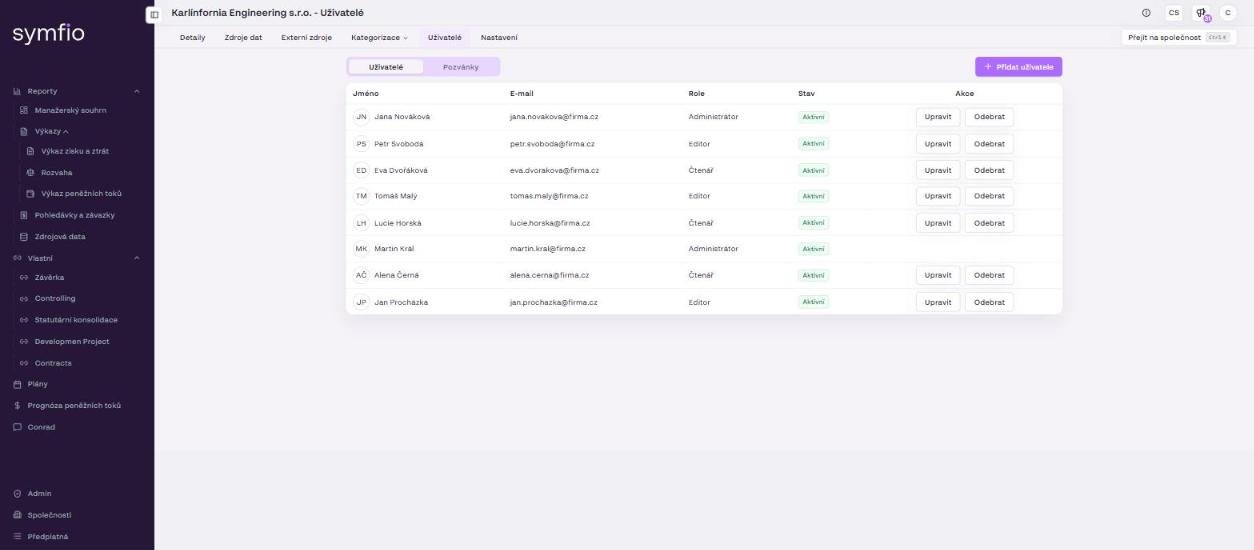
- Open Companies in the left menu and click the company (or press Ctrl + K).
- Go to the Users tab.
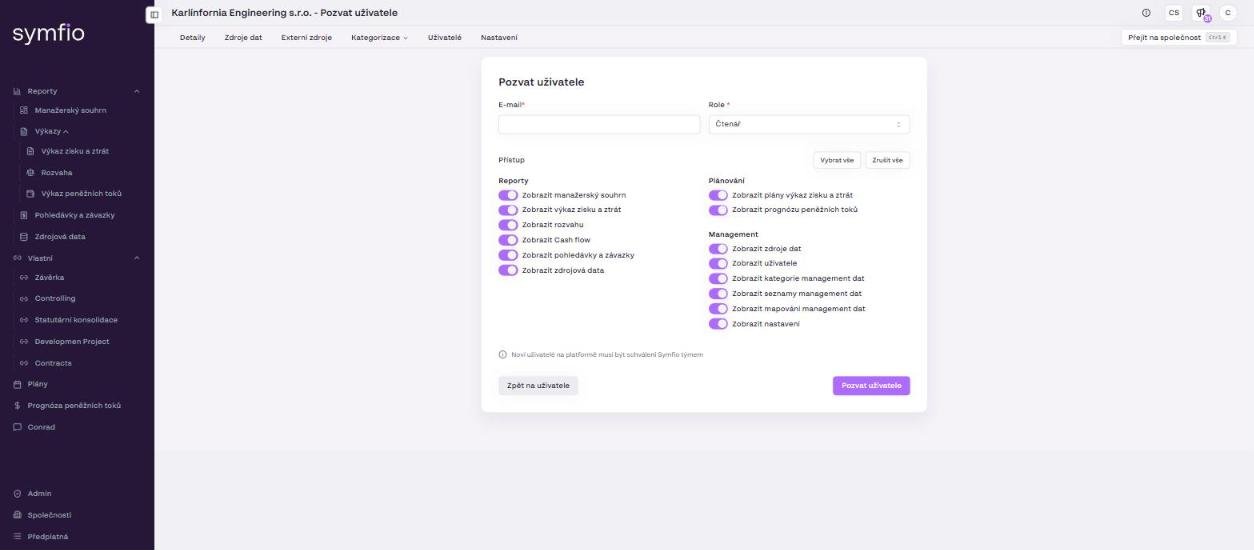
- Click Add user. The Invite user form opens.
- Enter the user’s E-mail. This is the address they will sign in with.
- Select a Role:
Reader,EditororAdministrator. - Set the toggles in the Access section according to what the user should see. Select all enables everything, Clear all lets you start from scratch.
- Click Invite user. The invitation appears on the Invitations tab; to go back without sending, click Back to users.
Access toggles
The toggles are divided into three groups and correspond to the items in the left menu and the tabs of the company detail:
- Reports: View executive summary · View income statement · View balance sheet · View cash flow · View receivables and payables · View source data
- Planning: View income statement plans · View cash flow forecasts
- Management: View data sources · View users · View categories (management data) · View lists (management data) · View mappings (management data) · View settings
Whatever is not enabled for the user in a given company is hidden from them in the menu and in the reports – including the company selection in consolidated reports and the answers of the Conrad AI controller, which respects entity permissions.
Warning: New users on the platform must be approved by the Symfio team (Noví uživatelé na platformě musí být schváleni Symfio týmem). If you invite a person who has not used Symfio before, expect that they will be able to sign in only after approval. Users who already have an account (for example from another company) get access once they accept the invitation.
Tracking invitations
- Switch to the Invitations tab on the Users page.
- Check whether the invitation is still pending. Once accepted, the user moves to the list on the Users tab with an active status.
- If the user cannot sign in, verify the e-mail address and whether they have already been approved by the Symfio team.
Changing a role or access
- Find the user in the table on the Users tab (columns Name, E-mail, Role, Status, Actions).
- Click Edit in the Actions column.
- Change the Role or the toggles in the Access section.
- Save the changes. They take effect the next time the user loads the page.
Removing a user
- Find the user in the table on the Users tab.
- Click Remove in the Actions column and confirm.
- Repeat the removal in every other company the user had access to – removal applies only to the current company.
Tips and common mistakes
Tip: When a colleague joins a group of companies, prepare the list of companies and use the same set of toggles in each one – inviting is quick when you know in advance what to tick.
Note: A Reader with View source data enabled can see individual journal entries, including counterparty names and document texts. If the user should only see aggregated statements, switch this toggle off.
Frequently asked questions
A colleague accepted the invitation but cannot see any report. Why?
Check the toggles in the Access section for their user – most likely no report is enabled. Alternatively, if they are new to the platform, they may still be waiting for approval by the Symfio team.
Do I have to invite a user to each company separately?
Yes. Permissions are bound to a company. To see the consolidated view of a whole group, the user needs access to every company included.
What is the difference between the role and the access toggles?
The role defines what the user may do (read, edit, manage). The access toggles define which pages and reports of the company they can see. You combine both – for example an Editor with access to planning only.
Can a user have different roles in different companies?
Yes. They can be an Administrator in one company and only a Reader in another.