Before you start
- Permissions: the report is visible to every user (Reader, Editor and Administrator) with the
View receivables and payablesaccess on the company. - Opening: in the left menu go to Reports › Receivables and payables.
- Data: documents are loaded from the accounting system (open items ledger). The status corresponds to the time shown in the footer “Accounting data updated”.
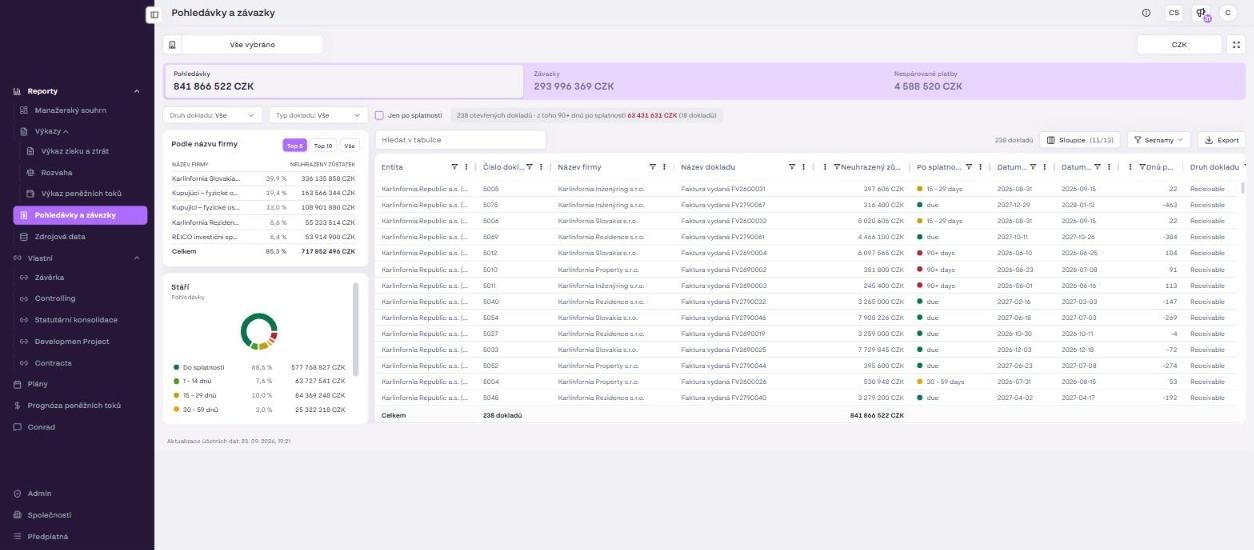
Toolbar and summary cards
In the toolbar at the top you select companies (building icon, Apply), the display currency (“CZK” button) and fullscreen. Below the toolbar are three summary cards that also switch the content of the whole page:
| Card | What it shows |
|---|---|
| Receivables (Pohledávky) | Total of unpaid issued invoices – what customers have to pay you. |
| Payables (Závazky) | Total of unpaid received invoices – what you have to pay suppliers. |
| Unmatched payments (Nespárované platby) | Total of bank payments that the accounting system has not yet matched to any invoice (see below). |
- Click the Receivables, Payables or Unmatched payments card.
- Watch how the filters, the left panel and the document table change according to the selected card.
Filters and the overdue summary
- Document kind (Druh dokladu, default “All”) – narrows the selection to a document kind as defined in the accounting system (for example invoice, proforma invoice, credit note).
- Document type (Typ dokladu, default “All”) – a further breakdown by type in the accounting system.
- Overdue only (Jen po splatnosti) – tick to hide documents within their due date and see only overdue items.
Next to the filters is a summary line, for example “238 open documents · of which 90+ days overdue 63 431 631 CZK (18 documents)”. At a glance you see the total number of open documents and the volume of the oldest receivables or payables.
By company name panel
The left panel By company name (Podle názvu firmy) ranks counterparties by outstanding balance.
- Switch between Top 5, Top 10 and All.
- Read the share of each company in the total in the columns
COMPANY NAME,%andOUTSTANDING BALANCE. The Total row shows the sum.
The panel is ideal for setting priorities: the five largest debtors often account for most of the total volume.
Ageing panel
The Ageing (Stáří) pie chart splits the outstanding balance into buckets by the number of days overdue. For each bucket you see the percentage and the amount.
| Bucket | Meaning |
|---|---|
| Not yet due (Do splatnosti) | Documents whose due date has not passed yet. |
| 1 – 14 days | Shortly overdue – a reminder is usually enough. |
| 15 – 29 days | Overdue for more than two weeks. |
| 30 – 59 days | One to two months overdue – active dunning recommended. |
| 60 – 89 days | Two to three months overdue. |
| 90+ days | More than three months overdue – risk of bad debt; consider a provision or enforcement. |
Document table
The right part of the page contains a table of all open documents for the selected card and filters. Above the table is the document count (for example “238 documents”).
- Type into the Search in table (Hledat v tabulce) field (document number, company name, amount).
- Click Columns (Sloupce, for example “11/13”) and tick the columns you want to display.
- Choose another display option from the Lists (Seznamy) drop-down if available.
- Click Export to download the table to Excel – for example to hand over to sales or the legal department.
Main table columns:
Entity– the company the document belongs to (important when several companies are selected).Document number,Company name,Document name.Outstanding balance– the remaining amount to be paid.Overdue– a label with a coloured dot according to the bucket (for example due, 15 – 29 days, 30 – 59 days, 90+ days).Due dateand further columns as selected.
The last row, Total, sums the outstanding balance of the displayed documents.
What unmatched payments are
Unmatched payments are incoming or outgoing bank payments that the accounting system has not yet assigned to a specific invoice – typically because of a missing or wrong variable symbol (payment reference), an advance payment, or one amount covering several invoices. Until they are matched they distort the receivables and payables position: the customer has already paid, but the invoice still appears open.
- Click the Unmatched payments card.
- Go through the table and find the corresponding invoice by company name and amount.
- Pass the list to your accountant for matching in the accounting system. After the next data update the payment disappears from the overview and the invoice’s open balance decreases.
Typical use cases
- Collections prioritisation: Receivables card, Overdue only ticked, By company name panel set to Top 10. You get the list of who to call first.
- Planning supplier payments: Payables card, sorted by Due date, exported for approval of the payment order.
- Input for the cash flow forecast: the Not yet due and 1 – 14 days buckets show how much cash will realistically come in and go out in the coming weeks. Use the values when filling in future months in Cash flow forecasts.
- Month-end close: review the 90+ days bucket for provisions and check Unmatched payments before closing the period.
- Group view: selecting all companies together with the Entity column shows the receivables of the whole group, including balances between group companies.
Tips and common mistakes
Tip: Ask Conrad (the AI controller) “Which invoices are overdue?” – it prepares a list by urgency and adds context.
Caution: The report shows the position as of the last data update. A payment received this morning appears only after the next load from the accounting system.
Note: When you switch the currency, amounts are converted at a fixed yearly rate; for exact foreign-currency settlements work with the document’s original currency in the accounting system.
Frequently asked questions
Why does the document count differ from the accounting system?
Check the company selection, the Document kind and Document type filters and the Overdue only checkbox. The report shows only open documents as of the last data update.
Can I mark a document as paid in the report?
No. Symfio only displays data from the accounting system. Record the payment or match it in the accounting system and wait for the next data update.
How do I display receivables for the whole group?
Choose Select all in the company selector and confirm with Apply. The Entity column in the table shows which company each document belongs to.
What does the "due" label in the Overdue column mean?
The document is within its due date (the Not yet due bucket). The other labels state the number of days overdue.